Create a free mini app with just a few clicks using Google AI Studio
Quick Summary
Google AI Studio lets anyone build AI-powered apps through plain language descriptions — no coding required. The platform supports web app creation (React/Angular) and Android apps, with direct integration of Google's own APIs and SDKs including Maps, Veo 3, and Google Search, all available for free. The process follows five steps: sign in, brainstorm an idea, write a prompt, let AI build the app, then test and deploy. It's best suited for personal use and rapid prototyping — for large-scale commercial products, pairing the exported code with Firebase Studio, Lovable, or Replit is the recommended path forward.
Artificial intelligence (AI) is fundamentally changing how people build applications. You no longer need to be a professional developer. With a smart AI assistant, you can turn any idea into a real product.
Google AI Studio is the clearest proof of that shift. The platform lets anyone, even without coding knowledge, build their own app. With the latest update, creating an AI app is as simple as having a natural conversation: describe your idea in plain language, and let AI handle the rest.
Google AI Studio: Build AI apps without code and create Android apps with ease
Google AI Studio is a browser-based development environment designed to simplify prototyping and building applications on top of Google's powerful AI models. Notably, the platform now supports direct creation of complete Android applications, opening the door for anyone who wants to ship a mobile product without writing a single line of code.
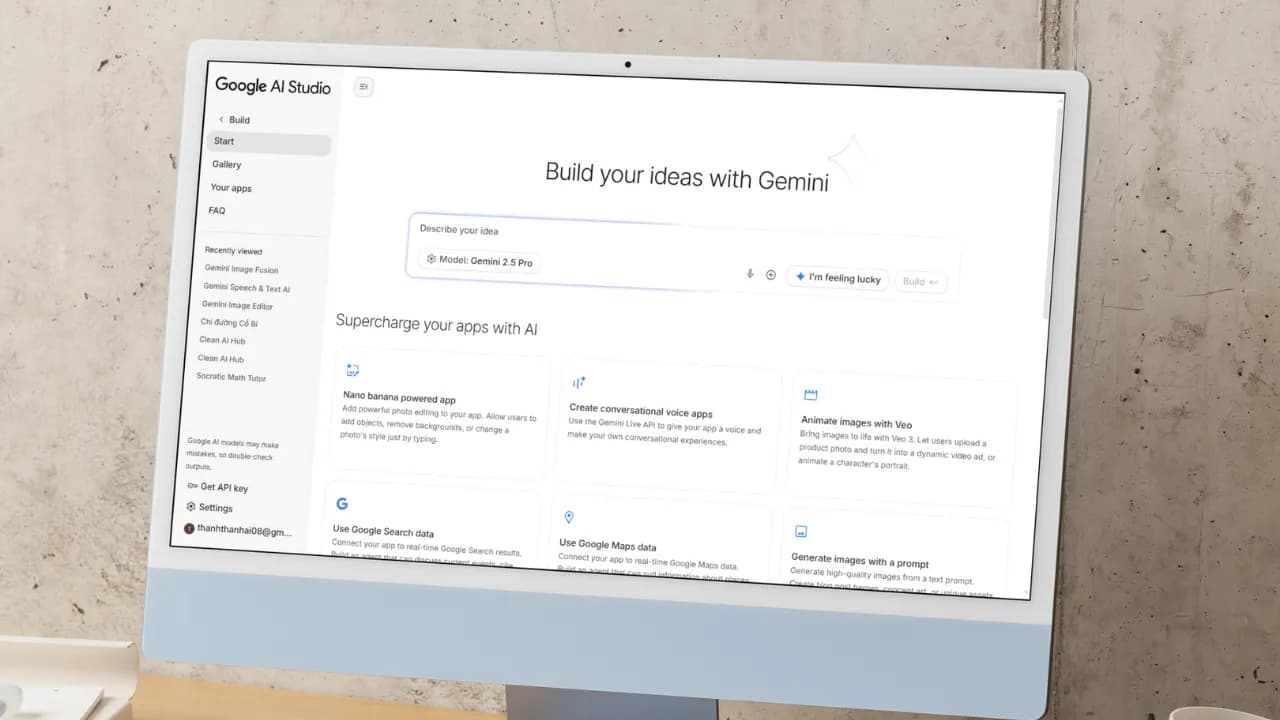
If Gemini was once described as the "brain" of an application, Google AI Studio now gives it "hands and feet" through direct connections to APIs and SDKs within Google's ecosystem (via the "Supercharge your apps with AI" section). This makes expanding functionality incredibly easy, and you can make your app behave exactly as intended without manually configuring APIs or SDKs from scratch.
Third-party APIs and SDKs still require manual input, but Google's vast ecosystem including Nano Bananas, Veo 3, Text-to-Speech, Google Search, and especially Google Maps covers nearly every common need out of the box.
Through personal testing, Google Maps works reliably for mini apps in Vietnam, such as navigation tools or real-time traffic viewers. When pulling data from Google Search, the quality of results is impressive enough to eliminate the need for third-party scraping tools entirely.
Another major advantage: Google AI Studio is currently completely free to use. The free credits Google provides are generous enough to comfortably explore Gemini 3, Nano Banana Pro, Veo 3.1, and many other tools for personal use without spending a thing.
Step-by-step guide to creating a mini AI app
Building an app in Google AI Studio is straightforward. Just follow these steps:
Step 1: Access and set up
- Visit: Go to the Google AI Studio tool page.
- Sign in: Log in with your Google account.
- Start building: Open the "Build" tab. Under the Start tab, you can choose an AI model (default is Gemini 3.5 Flash) and select a programming language: React, Angular, or Android. If you skip this, AI defaults to React.
Step 2: Come up with an app idea
If you don't have a specific idea yet, browse the App Gallery to see sample apps built by Google and the community. It's the fastest way to find inspiration and understand what's possible.
If you want something even more hands-off, just click the I'm feeling lucky button in the Start tab. Google AI Studio will instantly suggest interesting ideas, complete with example API and SDK integrations (under the Supercharge your apps with AI section) and the prompts AI uses to build them. It saves time and teaches you how AI thinks when creating apps.
If you already have a clear idea, move straight on to the next step.
Step 3: Write a specific prompt
If you don't have a detailed prompt covering all the functionality, language, and interface requirements like the samples in the I'm feeling lucky button, that's completely fine. You can create an app with just a single sentence, for example: "Create a photo collage app for me." From there, AI will automatically make all the decisions and carry out the remaining steps for you.
That said, the more detail you provide, the closer the result will be to your vision, which means less time editing afterward. If possible, include reference images or mockups from tools like Figma or Canva, since AI can understand and recreate interfaces almost exactly from those references.
Don't forget to add extras in the Supercharge your apps with AI section to let AI automatically connect the APIs or SDKs you need, or even enable intelligent reasoning mode for your app.
Here's an example of a detailed prompt you can reference:
"Create an AI Web App that allows users to:
- Upload 2 images (1 & 2) so the app combines them into 1 composite image.
- Support multiple aspect ratios: 1:1, 16:9, 4:3, 3:2.
- Include image preview and a Download button.
- Save creation history (including result image, prompt, and timestamp)."
Once your prompt is ready, just click Build and wait a few seconds to see the result.
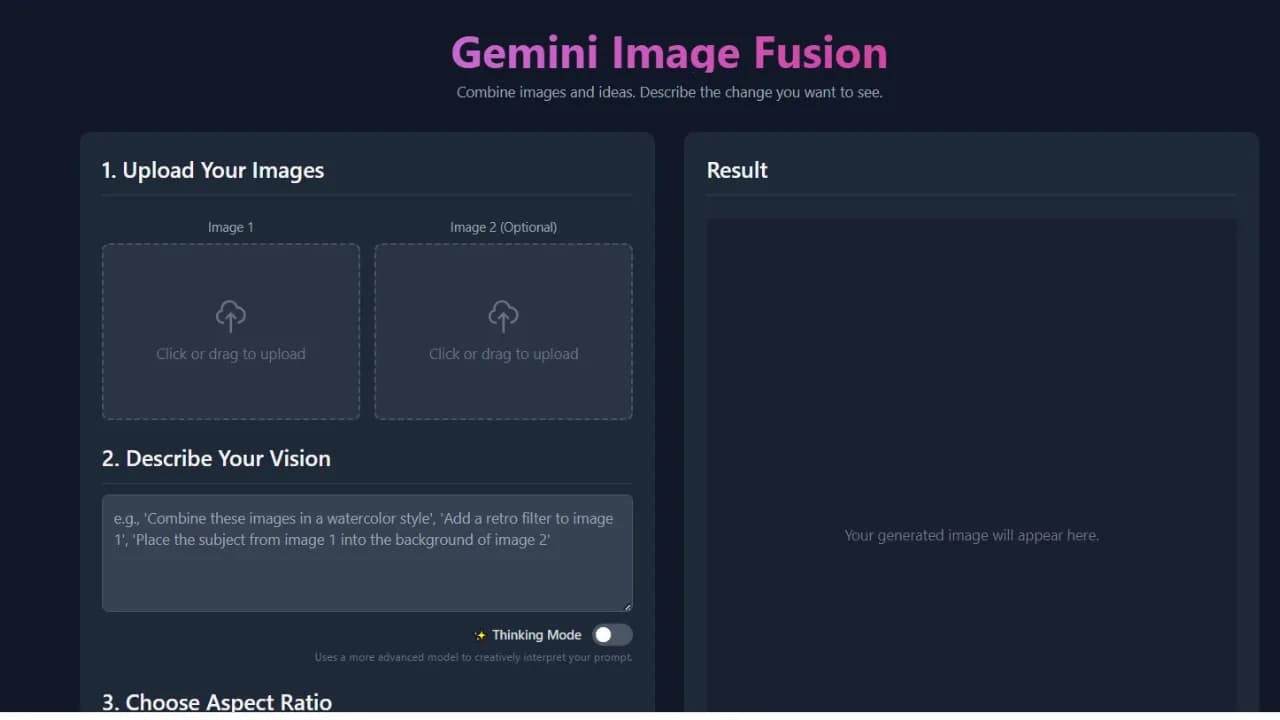
Step 4: AI automatically handles the build
Build process: AI Studio runs through several stages, including:
- Defining the UI Scope.
- Developing the React App.
- Planning the app structure.
- Integrating Gemini API.
- Auto fix errors.
Preview and edit via conversation:
A live preview of your mini app appears directly in the browser, so you can see it in action right away.
Developers can edit the code directly in the code panel. But if you're not technical, that's no problem at all. Just chat with AI to add, remove, or adjust features without touching a single line of code.
For example, you could say:
- "Add images 3 and 4 so I can merge four photos into one"
- or "Switch the interface to dark mode."
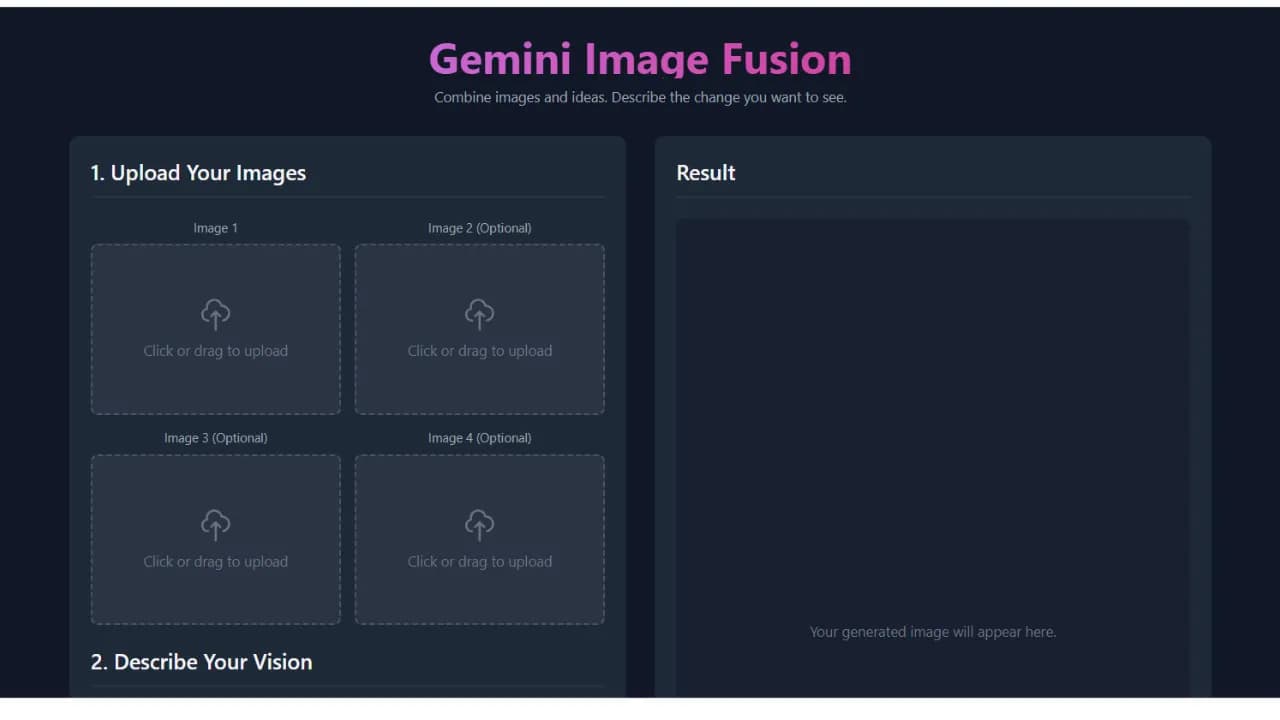
If you didn't add APIs or SDKs in the "Supercharge your apps with AI" section earlier, don't worry. With a simple prompt, AI will automatically integrate the necessary APIs or SDKs into your mini app quickly and with minimal effort.
You can even request advanced features like:
- Generate video from images using Veo 3, and the app will automatically connect to the Veo API.
- Add a speech-to-text button to make the app more interactive.
And the most exciting part: you can edit your app visually, just like working in Canva or Figma, using the Annotate app button where you can draw, add text, change colors, and more, all in the most intuitive way possible.
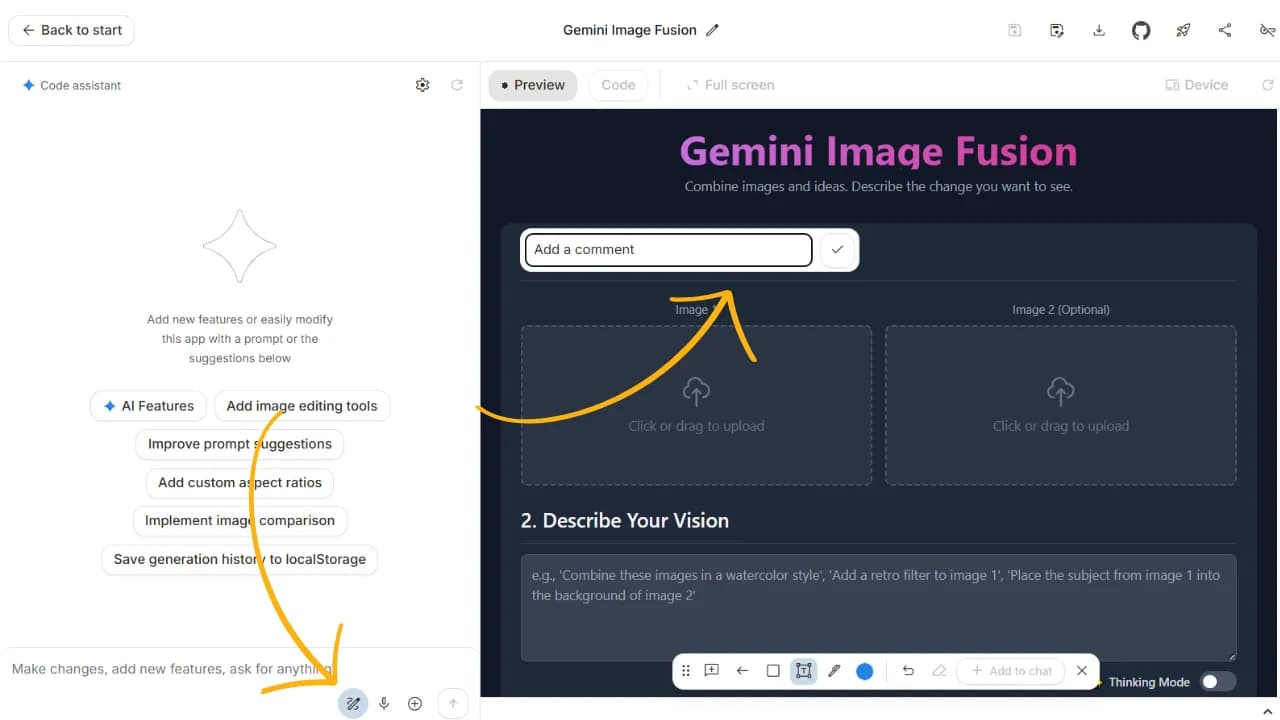
Step 5: Test and deploy
| Action | How to do it |
|---|---|
| Test in browser | Click the "Run" button or view the live preview. |
| Share app via link | Click "Share" and copy the link. |
| Download source code | Click "Download" (ZIP file containing React + TypeScript code). |
| Deploy to cloud | Click "Deploy" and select Google Cloud Run (requires a Google Cloud account). |
Can you build a complete app with Google AI Studio?
For personal use or quick idea testing, Google AI Studio is an excellent choice: easy to use and nearly zero cost. However, if you want to build a full-stack application with a proper backend, UX, and UI without any coding knowledge, you'll want to consider more suitable platforms.
Comparison with Google Antigravity IDE
While Google Antigravity is an IDE focused on helping professional developers write code faster through asynchronous background agents, Google AI Studio targets non-technical users in the no-code/low-code space.
With AI Studio, there's no software to install and no environment to configure. Everything happens through natural language descriptions right in the browser. Antigravity, on the other hand, offers deeper control over source code, multi-model support (Claude, GPT), and is better suited for complex projects that require refactoring an existing codebase.
| Goal | Recommended tool |
|---|---|
| Personal use, rapid prototyping, idea testing | Google AI Studio |
| Commercial app development, full-stack products, scalability needs | Google Firebase, Lovable, Bolt, Replit, Antigravity |
Google AI Studio is not the optimal choice for large-scale products or applications requiring high security. Instead, you can download the source code from AI Studio and upload it, or sync it directly via GitHub, to continue building on platforms like Firebase Studio (within the Google ecosystem), Lovable, Replit, Bolt, or Antigravity. These platforms help you complete your app with powerful backend features while still leveraging the AI foundation built in Google AI Studio.