What is Google Stitch AI? A beginner's guide to UI design
Quick Summary
Google Stitch is a free AI tool from Google that lets you create UI interfaces using plain natural language descriptions, with no Figma or coding knowledge required. This guide walks through how to write effective prompts, choose between Flash and Pro modes, and export your designs to Figma, ZIP, or Antigravity via MCP. With 350 free generations per month, beginners can experiment freely at no cost. Stitch is best suited for rapid prototyping and idea exploration, though layouts should be reviewed carefully before moving into production.
You have an idea for an app or website in your head but don't know Figma, don't know how to code, and don't want to spend weeks learning either. Google Stitch was built for exactly that situation: you describe an interface in plain English and AI generates a complete screen in under a minute.
What is Google Stitch?
Google Stitch is a free AI UI design tool developed by Google Labs, launched at Google I/O 2025 and currently powered by Gemini. You access it entirely through a browser at stitch.withgoogle.com with no installation required, just sign in with a Google account.
What sets it apart from Figma or Canva is that Stitch doesn't ask you to drag, drop, or select individual components. You simply describe what you want, for example "a landing page for a space technology app using purple as the primary color," and Stitch generates a complete interface with colors, fonts, and layout already in place. The output is real HTML and CSS, not a screenshot.
Getting started with vibe design in Google Stitch in 3 steps
Step 1: Write an effective prompt
The quality of your vibe design depends heavily on how you describe your prompt. A good prompt needs three elements: the type of screen, the target user, and the emotion or style you want to convey.
Weak prompt example: "Create a homepage for an app."
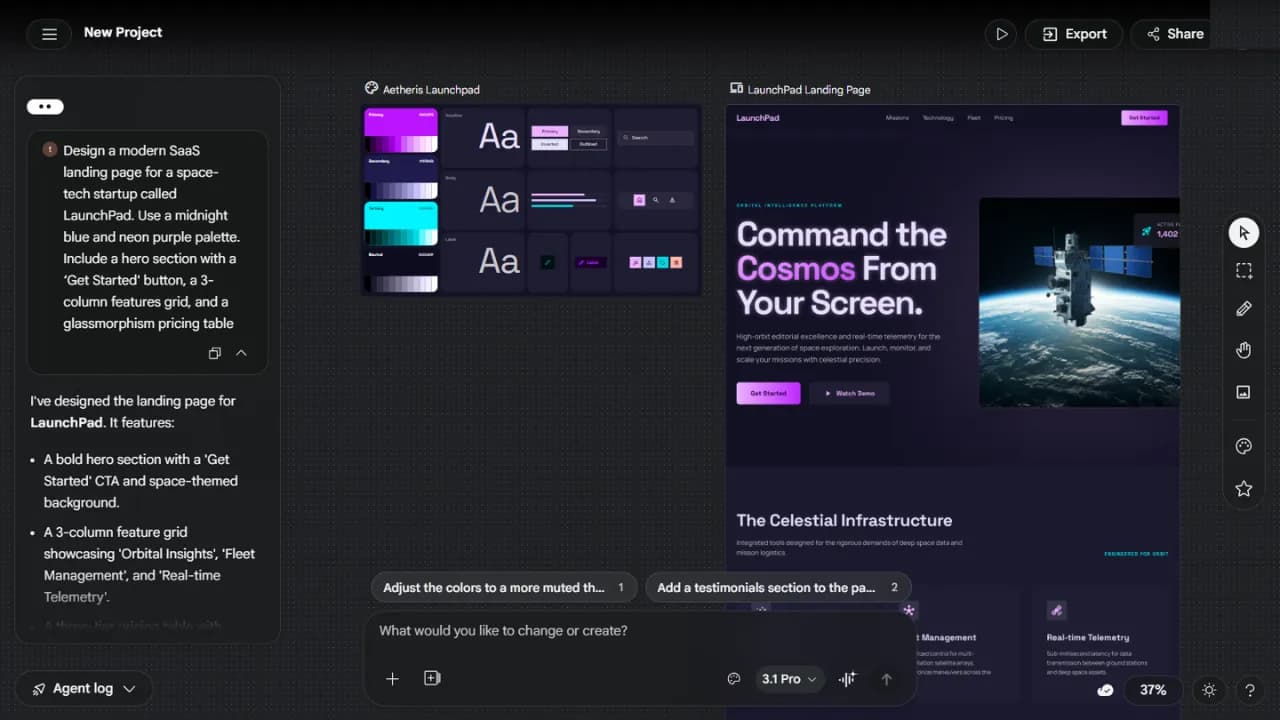
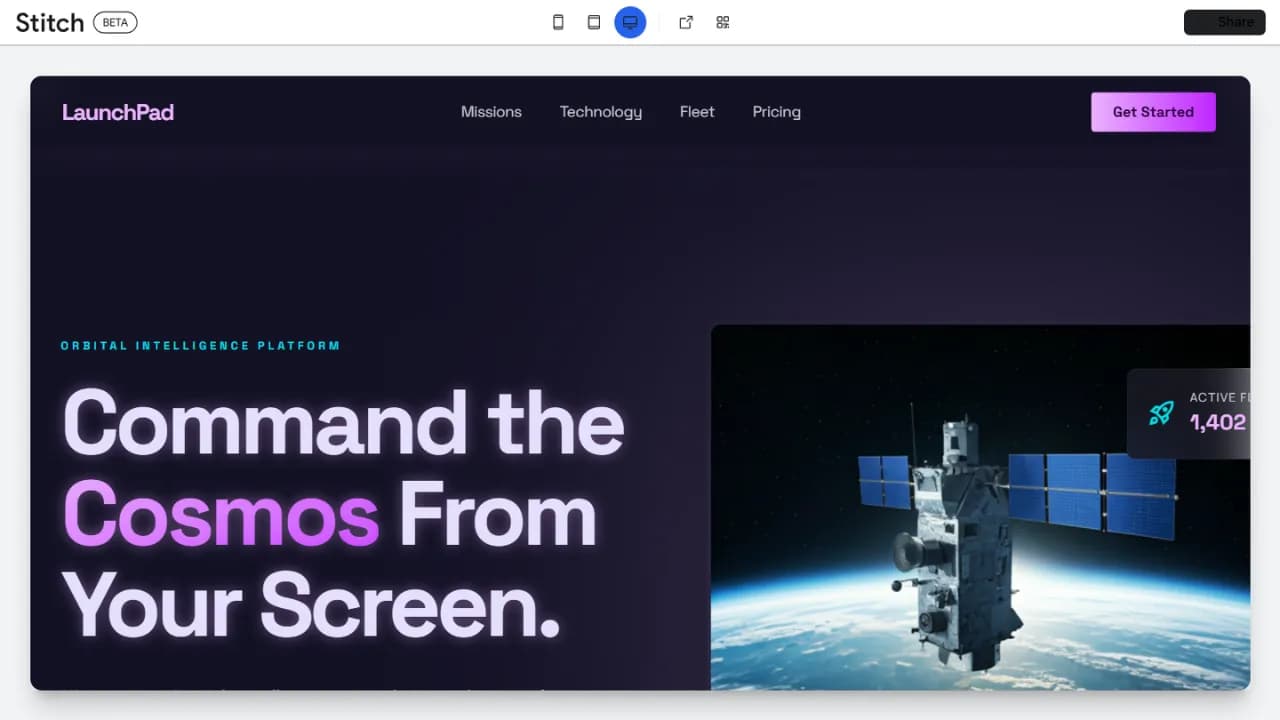
Strong prompt example: "Design a modern landing page for a SaaS product from a space technology startup called LaunchPad. Use a deep navy and neon purple color palette. Include a hero section with a 'Get Started' button, a 3-column feature grid, and a pricing section with a frosted glass effect." Here is what that produced:
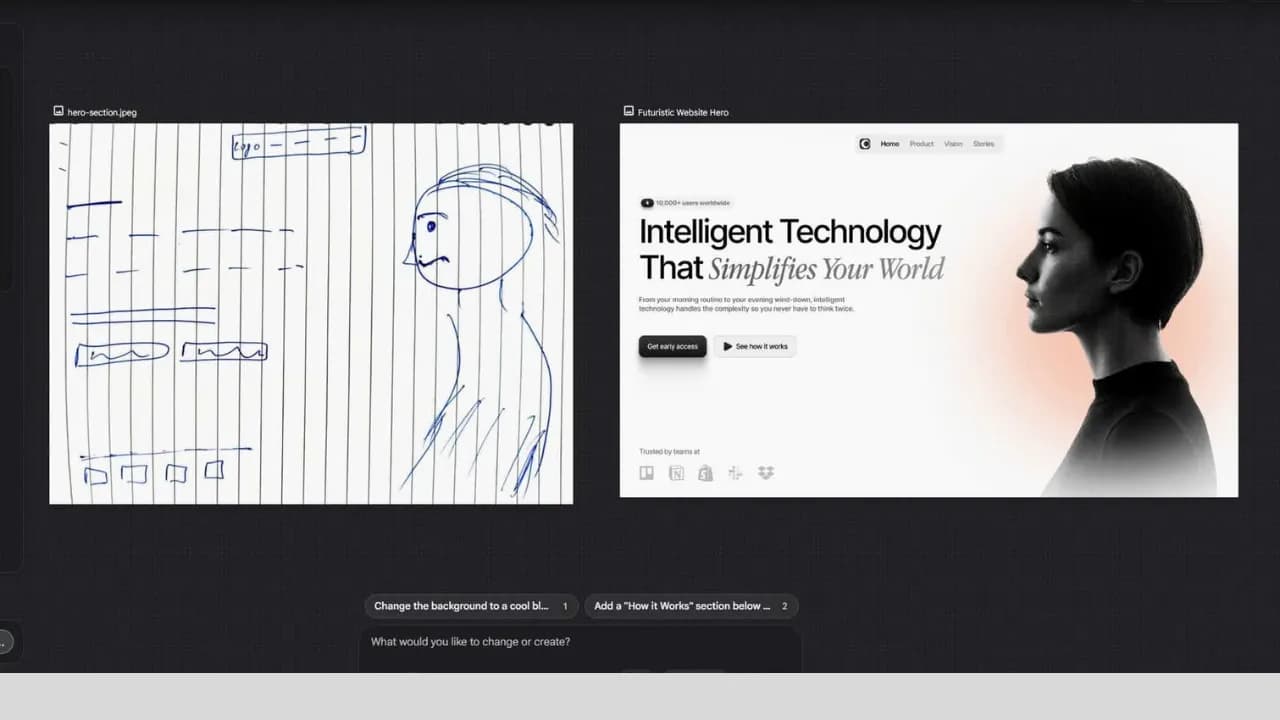
Stitch also supports uploading hand-drawn sketches, reference screenshots, or even voice input so AI can better understand the direction you have in mind.
Step 2: Flash or Pro mode?
Google Stitch currently offers two generation modes. Flash uses Gemini Flash, produces results faster, and works well for simple screens or when you want to explore multiple ideas quickly. Pro uses Gemini Pro, delivers more detailed and complex interfaces but consumes more quota.
With a free account you currently get 350 standard generations and 50 experimental generations per month. For beginners this is more than enough to experiment freely, though if you are working on a real project it is worth saving Pro quota for your most important screens.
Step 3: Where to export?
Once you have a design you are happy with, Stitch gives you four export options.
Paste into Figma: Stitch generates a code snippet you copy and paste directly into Figma. Best if you are working with a team that has designers or need more detailed editing in a familiar environment.
Download as ZIP: You receive the complete HTML, CSS, and image files packaged together, ready to open locally or drop into any development environment.
Export via MCP to Antigravity: This is the best option if you want to go from design to a working product. Antigravity shares Google's ecosystem so connecting to Stitch via MCP requires minimal setup, and from there an AI agent reads the full design directly and generates complete React or Flutter code without you copying or pasting any files. A detailed guide on this workflow is coming soon.
Copy prompt for an AI agent: Because Google Stitch supports MCP, any platform that supports MCP can pull the full design description from Stitch directly, including Claude Code, ChatGPT, and Grok.
What Google Stitch does well and where it still falls short
The clearest strength is the speed and quality of the output. A complex screen with multiple components can appear in 30 to 60 seconds, with clean and immediately usable HTML and CSS. It also does a good job of maintaining consistent colors, fonts, and spacing within the same project, making multiple screens feel like they belong to the same design system.
There are a few practical caveats worth knowing. Layouts can sometimes shift or components overlap, especially on screens with many layers of information, so reviewing carefully before going to production is important. The output is plain HTML and Tailwind CSS rather than React components or Vue, so if your project uses a specific framework you will need an additional conversion step unless you use Antigravity to handle that automatically. Image upload for incorporating into designs is also still fairly limited compared to Figma.
Where to start with Google Stitch
Don't try to design an entire app in one session. Start with the simplest screen in your idea, whether that is a login page, a homepage, or a product detail view. Write a detailed prompt following the guidance above, run both Flash and Pro to compare results, then refine by continuing to chat with AI inside the same Stitch interface.
Once you have a screen you are satisfied with, that is the right moment to try exporting to an AI agent platform and turning that design into something real. The full journey from prompt to working demo can be completed in around three to four hours once you are familiar with the workflow. The refinement work afterward still takes time, but it is significantly faster than the traditional approach.