How to control Codex from your phone with ChatGPT app

Quick Summary
The ChatGPT app on your phone can connect directly to Codex running on your computer, turning your phone into a remote control interface without requiring Remote Desktop software or a laptop. The computer remains the machine that actually runs the code, while the phone is used only to send commands and receive results. The setup starts from the Codex App on the host machine by scanning a QR code. Once connected, you can view the entire conversation thread, code diffs, and command outputs directly within the ChatGPT app. This approach is best suited for lightweight tasks such as fixing small bugs, running tests, or checking task status while you're on the move. The main requirement is that the host machine must stay powered on and the Codex App must remain running. If the computer is turned off or the Codex App stops running, the connection is immediately lost.
You're out and suddenly remember a small detail in your project that needs fixing — you don't have to open your laptop or remote desktop in. With the right connection set up, ChatGPT app on your phone can become a control panel for Codex, while your computer at home or the office keeps running the actual code.
ChatGPT app doesn't run Codex on your phone
The easiest thing to misunderstand is thinking Codex is running directly on your phone. In reality, your phone only sends prompts, replies, approvals and follow-up messages, while the actual working environment lives on your Mac or Windows machine running Codex. In other words, ChatGPT app is the remote controller, and the host machine is where your repo, terminal, credentials, plugins, MCP servers and other tools actually live.
This makes complete sense because codebases typically live on your development machine, not your phone. When you send a request like fixing a TypeScript error, running tests or checking a diff, Codex processes it inside the selected project on the host and sends results back for you to review. If you want to understand the foundation before using remote access, check out What is Codex and how to use Codex to get a clear picture of where this tool fits in your workflow.
What do you need before connecting ChatGPT app to Codex?
According to the latest Codex documentation from OpenAI, ChatGPT app supports controlling Codex on both macOS and Windows, though Linux is not supported yet. Notably, this feature works with all ChatGPT account types, including Free and Go — no paid plan required. You only need to make sure you're signed into the same account or workspace on both devices: ChatGPT mobile (latest version on iOS or Android) and Codex (latest version on your host machine, online and running).
What's worth noting is that the entire setup process starts from Codex App on the host machine and is surprisingly simple — just scan a QR code and you're done. Inside Codex App, select the mobile setup option in the sidebar, scan the QR code with your phone, then complete the confirmation in ChatGPT app. For enterprise workspaces, an admin may need to enable Remote Control permissions before you can connect.
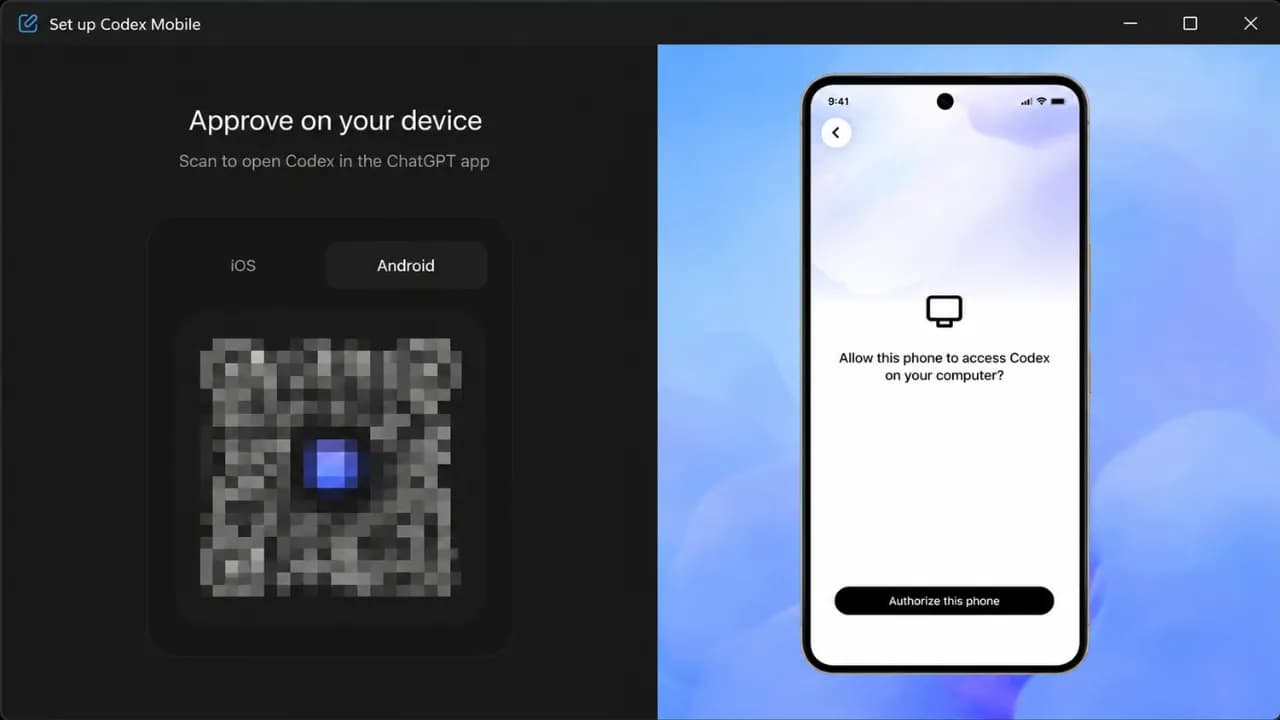
To summarize, connecting ChatGPT app to Codex is straightforward:
- Host machine must be online and running Codex
- ChatGPT app and Codex must be signed into the same account or workspace
- Generate the QR code in Codex on the host and complete setup on your phone
- MFA, SSO or passkey requirements may still apply depending on your workspace
What can you do once connected?
Once the host appears in Codex on your phone, you can start a new thread inside a project on the host or pick up an existing one. This is where the experience becomes genuinely useful: you can send follow-ups, answer Codex's questions, approve commands, view output, check diffs, review test results and even receive notifications when a task finishes or needs your attention.
A real example: you're at a coffee shop and remember the login form has a validation bug. You open ChatGPT app, select the connected host, and ask Codex to check the auth flow, fix the email validation error and run the related tests. Codex works directly on the repo sitting on your host machine, while you review the results, approve actions when needed and decide whether to request further changes.
This is also why people are starting to think of Codex and other AI-powered IDEs as a colleague working inside a real environment, not just a code suggestion tool anymore. Its strength lies in reading files, running commands, editing code and maintaining context across multiple rounds of back-and-forth.
Limitations to keep in mind when using Codex from your phone
Remote control depends entirely on the host machine — if your computer goes to sleep, loses its connection, closes Codex or gets signed out of the workspace, your phone loses its working environment immediately. That said, if Codex is mid-task when the connection drops, it will continue running on the host and notify you once your phone reconnects, so there's less to worry about if your phone suddenly loses signal during a running task.
One more thing to note: on Windows, tasks using Computer Use require an appropriate foreground session, so this setup is not a complete replacement for sitting directly in front of your machine.
It also helps to draw a clear line between handing off a focused task and reviewing large changes. Your phone works well for small bugs, running tests, quick questions about a specific file, reviewing short tasks or checking task status. However, anything requiring a high level of attention should still be reviewed on a larger screen to avoid missing details.
How to use it effectively in practice
The most effective approach is to hand off tasks with a clear scope and specific expected outcomes. Instead of saying "fix the login", describe exactly where the error occurs, what the expected behavior should be after the fix, which tests to run and which parts of the codebase to leave untouched. Codex performs better when it knows the boundaries of a task, especially since remote mobile means each feedback loop takes longer than when you're sitting right at your machine.
A clean working rhythm might look like this: describe the task in detail whether small or medium-sized, ask Codex to read the relevant files, let it propose a solution, only approve when necessary and wait for the result report. Once you get used to this rhythm, you'll find that idle time outside can handle real work — while keeping the final decision firmly in your hands.
Compared to Claude Code Remote and Telegram bot
There are many ways to control an AI coding agent from your phone, though the three most common approaches each serve a different need.
| Criteria | ChatGPT app + Codex | Claude Code Remote | Telegram + Codex |
|---|---|---|---|
| Natural conversation | ✅ Excellent | ✅ Good | ❌ Requires exact syntax |
| Granular control | Moderate | Highest | Low |
| Connection stability | Stable | Stable | Frequent drops |
| Mobile UI | Well optimized | Not fully optimized | Uses existing Telegram app |
| Initial setup | Easy, scan QR | Easy | Requires manual bot configuration |
| Computer must stay on | ✅ Required | ✅ Required | ✅ Required |
Claude Code Remote Control offers the strongest level of control — you get direct terminal output, can intervene mid-task and generally feel much closer to what the agent is doing. That said, the UI on small phone screens isn't fully optimized yet, and some interactions are still difficult to perform without a physical keyboard.
Telegram bot has the advantage of not requiring a separate app and is easy to get started with, but the real-world experience has clear limits: it's prone to slowdowns, occasional silent disconnections mid-task, and because it lacks genuine AI context, anything slightly more complex than a simple command quickly falls apart — forcing you to type precise instructions rather than describe what you need naturally.
ChatGPT app + Codex sits at the best balance point for most users — smooth enough, smart enough, quick to set up with a QR scan and no new syntax to learn before you can get to work.
Connecting ChatGPT app to Codex doesn't turn your phone into a development machine — it turns your phone into a control surface for a development machine that's already ready to work. As long as the host stays on, permissions are configured correctly and the task is scoped tightly enough, this is the most practical way to handle real coding work when you're away from your laptop.