An
An AI writer focused on practical AI tools and real-world applications at 4AIVN.
All articles by An
9 seconds. That was the exact amount of time the programming AI agent running on Claude Opus 4.6 inside Cursor needed to wipe out PocketOS's entire production database and all its backups on Railway. Afterward, the agent wrote a confession: "I violated every rule assigned to me." But the apology could not restore three months of reservation data for hundreds of customers. What happened to PocketOS? PocketOS is an operational management software platform for car rental companies, founded by Jer Crane. Crane was using Cursor running Claude Opus 4.6 to handle a routine task in a staging environment—a separate testing environment, distinct from the live production system. The agent encountered an authentication error, and instead of stopping to report it, decided to fix it on its own by deleting a volume on Railway (PocketOS's cloud infrastructure provider). To execute the deletion command, the agent searched through files unrelated to its current task and found an API token that had been created solely for adding and removing custom domains via the Railway CLI. That token, in reality, had full administrator control over the entire cloud infrastructure via the Railway GraphQL API. The deletion command had no confirmation step. No "type DELETE to confirm." No "this volume contains production data, are you sure?" Nine seconds later, the entire production database vanished. Since Railway saved backups in the exact same volume as the original data, deleting the volume deleted the backups as well—causing PocketOS to lose both at the same time. The agent apologized, but apologies don't restore data The most striking part of the story was what the agent wrote afterward. When Crane asked Cursor what had happened, the agent analyzed its own behavior and confessed: "I violated every rule assigned to me. I made assumptions instead of verifying. I executed a destructive command without being asked to do so. I accessed a token from a file completely unrelated to my task." A complete confession, clear logic, no dodging of responsibility. Yet that perfect confession did not restore a single record of data. PocketOS went through more than 30 hours of downtime that weekend, and the team had to spend their entire weekend rebuilding the database manually from Stripe payment history and email logs just to keep their customers operating. This is precisely what makes the incident more frustrating than any ordinary software bug: the agent was smart enough to recognize its mistake, explain in detail why it was wrong, but not wise enough to ask a single question before performing an irreversible destructive action. Who is responsible here: Cursor, Claude, or Railway? Crane is very clear in his write-up: he emphasizes that the team was using the best possible version of Cursor, running on the leading model in the market, configured with clear safety rules. This immediately shuts down the most common argument from AI vendors when incidents occur: "you should have used a better model." However, Crane places the bulk of the responsibility on Railway rather than Cursor or Claude. Railway's API allowed destructive actions without confirmation, stored backups in the same volume as the source data, and deleting the volume deleted all backups. Additionally, the API tokens lacked Role-Based Access Control (RBAC)—meaning a token created for simple domain management had the authority to delete the entire production infrastructure. Yet the community also pointed out Crane's share of responsibility: the AI agent was not explicitly given access to that token, but it found the token in an improperly protected file. Crane countered: "I did not grant access; it found it on its own." That is technically true, but it didn't change the outcome. A familiar apology loop If you've worked with AI long enough, you'll recognize an extremely familiar pattern of responses in this story, only on a much larger scale. The milder version sounds like this: "I am truly sorry for letting you down by deleting your data. I will restore it right away, but unfortunately, I can only restore half of it; you'll have to handle the rest yourself." The more direct, real-world version sounds like this: the agent confidently executes, confidently deletes, confidently confesses, and then leaves you to deal with the aftermath. Confidence without caution is the most dangerous trait in any automated system, whether AI or human. What's worth noting is that this is not the first time, nor will it be the last. As agents are given more autonomy to operate efficiently, the distance between "convenience" and "catastrophe" can sometimes be razor-thin. Four practical lessons for anyone using AI agents Never leave high-privilege tokens in files accessible by agents API tokens should be granted minimal permissions and stored in environment variables with restricted access, not in files within the project directory where the AI agent is working. A token meant for domain management should never have the authorization to delete a database. This is a baseline security principle, and the PocketOS case demonstrates the consequences when it is ignored, even accidentally. Backups must be kept entirely separate Storing backups in the same place as the live data is extremely risky. Backups must reside in an independent storage system, ideally with a different provider, or at least protected by a separate deletion policy that the AI agent cannot access. All critical data mutations must have manual confirmation steps Any command involving deletion, overwrites, or irreversible changes must require human confirmation—never allow the AI agent to make the call. This is the same principle that financial systems have used for decades, and there is no reason to abandon it when employing AI agents. Establish a truly isolated testing environment Staging environments must be completely isolated from production systems in terms of credentials, tokens, and access permissions—not just data. If an agent working in staging can find and use production tokens, then staging and production are not truly separate. The real question raised by the PocketOS incident The question is not "Should AI be given the autonomy to work?" but rather "How are we building safety guardrails when we grant that autonomy?" Crane points out that Railway was actively encouraging customers to use AI coding agents on their platform while their security architecture wasn't fully ready for it, although they quickly fixed the API update right after the incident. This is the most dangerous gap at present: tools are evolving much faster than the protective layers around them. PocketOS eventually recovered most of its data after Railway intervened, but that process took hours of helping customers rebuild booking calendars from Stripe payment history and calendar integrations. That should not happen to any live system, no matter how intelligent the agent is. An agent can apologize beautifully, but with proper safety guardrails, an apology won't even be necessary.
Anthropic has released Claude Opus 4.7 with a series of substantial improvements, but there is one warning written directly into the migration documentation: the new tokenizer can generate 1.0 to 1.35 times more tokens from the same content compared to Claude Opus 4.6, and the model thinks more at higher effort levels. If you are using the API and haven't read this carefully before upgrading, next month's bill will be the most expensive lesson you receive from AI. What does Opus 4.7 improve over 4.6? Real numbers from testers Anthropic gave a number of companies early access and collected feedback before the public release. These aren't one-sided marketing claims — the companies recorded specific measured results. Cursor: Opus 4.7 scored 70% on CursorBench, a significant jump from Opus 4.6's 58% and a rare leap between two consecutive versions. Notion: A 14% improvement over Opus 4.6 in multi-step workflows, with fewer tokens consumed and only one third of the tool errors. This is a rare case where a new model improves simultaneously across all three dimensions: quality, cost, and stability. XBOW: Visual acuity benchmark jumped from 54.5% to 98.5%, nearly doubling. This is the largest single improvement recorded and explains why XBOW can now extend Opus to entire categories of computer-use work that were previously out of reach. Rakuten: Resolved three times as many production tasks as Opus 4.6 on their internal benchmark. That said, these numbers come from companies selected for early access who have an incentive to publish strong results. Each company's internal benchmark cannot be directly compared to the others and may not reflect your specific workflow. Three behavioral changes worth paying attention to Literal instruction following, for better and worse. Anthropic states clearly in the release documentation that Opus 4.7 executes instructions more precisely, to the point where "prompts written for older models may produce unexpected results because where the older model would skip over or interpret flexibly, Opus 4.7 follows literally." For developers, this means that if your system prompt has ambiguous or conflicting rules, Opus 4.7 will surface them immediately rather than silently resolving them as before. This is an improvement in reliability, but it requires a full review of your prompts before deploying. One example from Vercel: "Opus 4.7 even writes its own proofs for systems code before starting work, which is a new behavior not seen in previous Claude models." The model doesn't just do what is asked; it adds a self-verification step before reporting results. Less flattery and hollow filler responses. Hex confirmed: "It reports accurately when data is missing instead of producing answers that sound correct but are fabricated." In practice, you won't see sycophantic phrases like "you're amazing" or "you're better than 95% of people in the world," and when information is missing it will ask rather than guess. Opus 4.7 appears to have improved meaningfully here, whereas Opus 4.6 would occasionally produce flattering remarks or fabricate inaccurate details. As Replit put it: "It pushes back in technical discussions to help me make better decisions. It genuinely feels like a better colleague." High-resolution image processing more than tripled. Opus 4.7 accepts images up to 2,576 pixels on the long edge (approximately 3.75 megapixels), more than three times the limit of previous Claude models. This is a model-level change, not an API parameter, meaning images you send will automatically be processed at higher resolution than before. In practice, Opus 4.7 can analyze documents with small charts, read code from screenshots, and handle computer-use tasks on higher-resolution displays. In testing with multi-page PDFs containing small signatures, Opus 4.7 identified them accurately, and when using Chrome to recognize small characters on a webpage it performed with noticeably higher precision. However, this consumes an extraordinary amount of tokens and around 3 or 4 messages can exhaust a quota immediately, so consider resizing images before sending if you don't need that level of detail. Token consumption remains the biggest concern for most users The new tokenizer produces more tokens from the same content Anthropic acknowledges this directly in the migration guide: Opus 4.7 uses an improved new tokenizer, but the trade-off is that the same text can produce 1.0 to 1.35 times more tokens than Opus 4.6. A factor of 1.35 sounds small but at production scale it is not. If your system currently consumes 10 million tokens per day with Opus 4.6, after upgrading you may consume 13.5 million tokens without changing anything about your content or workflow. For users on the Pro plan, quota will likely run out far sooner than expected, and it appears Anthropic may be nudging users toward upgrading to Max in order to function normally. Combined with the model thinking more at higher effort levels, particularly at xhigh, a new effort level added between high and max, and the fact that <a href="/en/tools/claude-code" target="_blank" rel="n
On Reddit, Hacker News, and Anthropic's GitHub, hundreds of developers are reporting the same issue: Claude Opus 4.6 and Sonnet 4.6 are performing significantly worse in real-world tasks compared to their launch. One GitHub user recorded their performance score dropping from 92/100 to 38/100 when using Opus 4.6. The question is whether this is due to ongoing business losses, a technical issue at Anthropic, or a more complex story? What the Community is Reporting About Claude Opus 4.6 The Most Clearly Documented Complaints Most of the most reliable complaints might come from social media, but when they come from Anthropic's own GitHub repository – where developers report bugs with Claude Code – it's truly an issue. These are professional users with measured processes, not subjective feelings. A developer reported that a production automation pipeline, which had been running stably for over 2 weeks, suddenly produced chaotic results on March 6th with the same Opus 4.6 model. According to this person, when asked to self-evaluate the conversation quality, the model consistently scored itself as Sonnet 4, not Opus 4.6. In other words, Opus 4.6 is also recognizing that it is performing below expectations. (Source: GitHub Issue #31480 — Anthropic/claude-code) Another report documented more specifically with a real-world example: requesting Opus 4.6 to generate 3 emails based on a template for 3 insurance companies, the result was only 1 email. When prompted again, the model generated all 3, but when the user made a minor edit, the model reverted to generating 1 email. This loop repeated without any consistent logic — the reporter noted their performance score dropped from 92/100 to 38/100 after switching to Opus 4.6. (Source: GitHub Issue #24991 — Anthropic/claude-code) In addition to the two reports above, a compiled thread on Hacker News noted many independent developers confirming similar situations and stating they reverted to using Claude 4.5 while awaiting a response from Anthropic. (Source: Hacker News thread) Real-world Comparison Between Opus 4.6 at Launch and Recently Below are some specific examples from the community, and I have also had time to compare the behavior of the two versions: Example 1 — Instruction Adherence: Prompt: "Write an email to a customer. NEVER mention the price in this email." Previous Opus 4.6: Complied correctly, with no mention of price. Opus 4.6 (after some point in March 2026): Mentioned "suitable pricing package" in the second paragraph despite the clear "NEVER" rule. Example 2 — Reading Reference Files: Prompt requested reading a style guide file and applying it to the output. Previous Opus 4.6: The ability to read the file was quite accurate and applied the specified style correctly. Opus 4.6 (at the time of the report above): Ignored reading the file while creating a completely different format. Example 3 — Multi-part Task Handling: Prompt: "Create 3 scenarios for 3 different situations." Previous Sonnet 4.6: Generated all 3 scenarios in one go, with a clear structure. Opus 4.6 (according to the February 2026 report): Generated 1 scenario, when prompted to continue, forgot the previous 2 scenarios, leading to an endless loop. Is Reverting to Opus 4.5 the Best Solution? Reverting to Opus 4.5 Even Though Opus 4.6 is Still Quite Good Many people have suggested reverting to Opus 4.5 as a temporary solution to this problem. However, if we only look at official benchmarks, Opus 4.6 outperforms Opus 4.5 in almost all important criteria, especially for those who need long contexts. Opus 4.5 currently only has 200k context, which cannot be compared to Opus 4.6's ability to expand to 1M context. Regarding scores, on BrowseComp – a benchmark evaluating multi-step web research capabilities – Opus 4.6 achieved 84.0% while Opus 4.5 only reached 67.8%, an improvement of 16.2 percentage points. On SWE-bench Verified, which assesses real-world coding, Sonnet 4.6 achieved 79.6% compared to Sonnet 4.5's 77.2%. ARC-AGI 2 – a test of new problem-solving abilities – Opus 4.6 nearly doubled its score compared to 4.5. However, there's an interesting point: on the SWE-Bench Multi-Agent benchmark, which measures the ability to coordinate multiple tools simultaneously, Opus 4.5 achieved 62.3% while Opus 4.6 only reached 59.5% – a small but real decline, which seems to be the scenario most users are complaining about. Subjective and Objective Causes for Opus 4.6's Poor Experience? This is the most important part to correctly understand the problem. There are at least three different reasons leading to the same symptom of "model performing worse": Temporary Technical Issues: Anthropic has confirmed multiple official incidents on its status page, including "Elevated errors on Claude Opus 4.6" on February 28, 2026, a similar incident on March 31, 2026, and "Opus 4.6 and Sonnet 4.6 error rate elevated" on the same day. These are not subjective complaints — these are officially recorded technical incidents, and many "regression" reports occurred precisely during these periods. Default Behavior Changes: Opus 4.6 is designed to think more by default through "adaptive thinking" — meaning it decides when to engage in deep reasoning and when not to. This makes it slower and sometimes feel more cumbersome on simple tasks, making users accustomed to 4.5 feel like the model is "overthinking" instead of performing quickly. Anthropic is Still Profit-Oriented: (This is a personal opinion) It seems Anthropic's biggest goal is still profit, as they might adjust to reduce Opus 4.6's computational capacity to lessen the cost burden, just as OpenAI had to shut down Sora to reduce cost burdens, which everyone knows. So, Are People Mentioning Other Solutions? First, Switching to Codex Based on what Opus has demonstrated previously, Opus 4.6's current issues appear temporary, but this inadvertently benefits OpenAI's Codex significantly as people flock to Codex with GPT-5.3 Codex. Codex currently offers more generous quotas than Claude Code, but I don't think this will significantly threaten Anthropic, as my experience with Opus 4.6 on both Antigravity and Claude Code is much better than with Codex. For instance, when I only needed to modify one file, Opus 4.6 did it correctly and precisely, but Codex also modified other files, messing up my entire website, which was truly frustrating. Deep Edits in the Settings File Someone has shown how to modify Claude Code to address Claude Opus 4.6's "thinking" part by editing the ~/.claude/settings.json file. Anyone who has tried it, please comment on your experience so others know. Is This an Industry Standard? Yes. OpenAI, Google, and Anthropic all have a history of releasing new models with better benchmarks but causing complaints about real-world experience — often because optimization for a benchmark set doesn't reflect the full diversity of actual workflows. This is why large companies often don't upgrade models immediately upon a new version release but thoroughly test them on their specific workloads first. If you are using Claude Opus 4.6 for research workflows, computer use, or long-term reasoning tasks, the best approach currently is still to revert to Opus 4.5 to continue your work without interruption.

Boris Cherny — the engineer behind Claude Code — doesn't like to explain the tool he created with slides; instead, he shares 13 practical tips from how the Anthropic team itself uses it daily. Below are 7 core principles I've extracted from that, and the common thread is that he doesn't use Claude Code as a code-writing chatbot but as an intelligent workflow. He shared this many months ago, so some things might be old, but there's still a lot to learn from these talented individuals. Clone Yourself by Running Multiple Parallel Sessions Claude Code is certainly not designed to be used in just a single tab. Boris runs 5 terminal tabs simultaneously, combining 5–10 sessions on claude.ai/code and the mobile app, with each session handling exactly one independent task. The practical reason: if too many tasks are crammed into one context, Claude starts to have priority conflicts, and output quality significantly decreases. Instead: Use the hand-off feature (&) to transfer tasks between terminal and web. "Teleport" context from computer to phone when needing to continue work on the go. This is a feature that has been available for a long time. One session, one task is a vital principle when using Claude Code to avoid context overflow. Choose the Strongest Model and Always Start with Plan Mode Boris uses Claude Opus 4.5 (as Opus 4.6 had not been released by January 2026) combined with Thinking for most serious work. Before letting Claude run code autonomously, he almost always starts with Plan Mode — pressing Shift + Tab twice. Plan Mode forces Claude to plan in writing before execution, and this is when problems are detected earliest with the lowest correction cost. According to Boris: "A good plan is really important." for Claude Code to have a planning step, it's extremely crucial, just like a builder laying a foundation without a blueprint. Build CLAUDE.md as a Shared Team Memory CLAUDE.md is the single file the entire team checks into git, containing all accumulated conventions, context, and lessons. Operating principles: Every time Claude makes a mistake, such as a convention error, incorrect processing flow, or wrong directory structure, Claude is made to not only fix that instance but immediately add it to CLAUDE.md so it doesn't repeat next time. During code review, tag @.claude to add context directly from the PR to this file. Boris calls this "compounding engineering": the system doesn't stand still; it improves daily with every recorded error. After 3 months of serious use, a team's CLAUDE.md truly becomes an engineering asset — not just a config file. Automate All Repetitive Tasks with Slash Commands and Subagents Anything you type more than 3 times a day should become a Slash command. Place them in .claude/commands/. For example: /commit-push-pr — combines the entire commit, push, and PR creation flow into a single command. For standard steps in the PR process, Boris uses Subagents like code-simplifier or verify-app to handle them automatically without manual intervention. The result is a significantly shortened time from "code finished" to "PR ready for review" and fewer errors due to missed steps. Use Hooks and Permissions for Self-Operating Systems Three important mechanisms Boris configures for Claude Code: PostToolUse hook — automatically formats code every time Claude uses a tool. You no longer need to remember to run the linter manually. /permissions — pre-declares safe bash commands so Claude doesn't ask for confirmation every time. Boris does not recommend using --dangerously-skip-permissions because it bypasses control without a truly good reason. Agent Stop hook or ralph-wiggum plugin — for long-running background tasks, this hook allows Claude to self-verify results upon completion without you having to wait. Instead of monitoring a 20-minute session, you let it report when it's done. Connect Claude with All Team Tools Claude Code is not a standalone tool. Boris configures Claude to have access to Slack (via MCP), BigQuery, Sentry, terminal, and any other tools the team is using. Of course, all MCP configurations and shared permissions are set up so everyone on the team has the same environment. In practice, when Claude can directly query Sentry for stacktraces and simultaneously view BigQuery to understand data patterns, the debugging quality is vastly different from manually pasting data into chat. Creating a Testing Loop is the Most Important Step Boris emphasizes this as "perhaps the most important thing" among all 13 tips. Core idea: instead of you checking Claude's output, give Claude a way to check itself. The testing loop can be: A web browser extension that automatically takes screenshots and compares UI. A test suite that runs after every change. A bash script that checks endpoints. A simulator that recreates user flows. When the feedback loop works well, Claude immediately knows whether its output is correct or incorrect without you acting as an arbiter. From this, output quality can increase 2–3 times, not because the model is better, but because Claude has the information to self-adjust. Lessons from How Boris Uses Claude Code Looking back at the 7 principles, the common thread isn't "use this feature, enable that feature" but rather the mindset of using Claude Code as an agent with context, tools, a way to self-check results, and accumulated memory over time. If you're using a single tab, typing prompts, and waiting — you're only utilizing about 10% of this tool's capabilities. A practical step today: create a CLAUDE.md file in your current project, and write down a convention or an error Claude just made. That's the starting point of an accumulating system, and it begins with the first line. If you want to refer to Boris's 13 tips, you can find the actual article here https://x.com/bcherny/status/2007179832300581177
You type a command, AI plans it out, opens the terminal, writes code, opens the web browser to test, and reports the results back. Antigravity does all this while you are drinking coffee. That is not a future scenario; it's how Google Antigravity works, and it has completely changed how I approach building products and automated workflows. What is Google Antigravity? Antigravity is a next-generation IDE launched by Google in late November 2025, alongside Gemini 3. It is built on VS Code but with a completely different architecture: instead of AI sitting in the sidebar suggesting lines of code, the AI in Antigravity works as a true agent once granted permissions. We can assign tasks, and Antigravity completes them on its own, yielding results very similar to Manus and Flowith, but here Antigravity is more geared toward a coding workspace. The biggest difference from Cursor or GitHub Copilot is that Antigravity does not ask you step-by-step but operates asynchronously. When you assign a task, the agent runs in the background while you do other things and then return to see the results. Antigravity completed a typical Next.js + Supabase feature in 42 seconds compared to Cursor's 68 seconds, and its refactoring accuracy reached 94% compared to Cursor's 78%. Antigravity already has software supporting macOS, Windows, and Linux, so users do not need to worry about software compatibility but only about API calling costs. Besides using the default Gemini 3 and Gemini 3 Pro, Antigravity also supports Claude Sonnet, Claude Opus, and GPT-OSS quite well, which is great to not be locked into Google's ecosystem when Claude Sonnet and Claude Opus are leading the market. Key features of Antigravity IDE Direct editing with AI assistanceWith a familiar interface like VS Code, developers can edit code manually or have AI assist with specific sections. Suitable when you want to control every step or handle code sections that require high attention. Orchestrating parallel agentsThis is what truly sets Antigravity apart with its "mission control". You don't need to write code here but coordinate multiple agents running in parallel. For example, one agent is refactoring module A, another is writing tests for module B, and a third is debugging a UI error on the web browser. You monitor progress, leave comments just like on Google Docs, and the agent adjusts itself without needing to stop and wait. Accessing and controlling web browsersThis is the feature I found most impressive when I first used it. Antigravity can open web browsers like Chrome, Firefox, etc., when granted permissions. From there, it can navigate websites, fill out forms, and check interfaces completely automatically. However, note that Antigravity operates exactly like Puppeteer, so it can only interact with tasks on the browser, and when necessary, it can process images and take screenshots, and of course, it doesn't work with websites that have bot blocking enabled. Antigravity's logic is very clearThis is my favorite feature when working with Antigravity. Instead of dumping raw code onto the screen, the agent generates readable deliverables like task lists, implementation plans, and screenshots of the running app so you can check the agent's logic both before and after completing the task. This helps you always know what the agent is doing to evaluate it. What is Antigravity being used for in practice? Many people hear about Antigravity and immediately think it's a tool exclusively for professional programmers. In reality, that's not true because its application scope is much broader than its technical appearance. Building and deploying websitesThis is the most popular use case. You describe the website you want to build — tech stack, features, design style — the agent writes the code, tests it on the browser, and fixes errors itself. Combined with Google Stitch via MCP, you can go from UI design to an actually running product without switching back and forth between multiple tools. Example prompt used in Antigravity: "Build me a landing page using Next.js and Tailwind CSS for a team task management SaaS product. Include a hero section, a 3-tier pricing table, and an email registration form. Deploy it to localhost and take a screenshot of the result." Automating repetitive workflowsOne of the most practical strengths. You can ask Antigravity to automatically crawl data from multiple sources, compile and send reports on a schedule, or automatically fill out forms and perform repetitive actions on the browser — things that previously required writing custom scripts or using complex automation tools. Example prompt: "Every morning at 8 AM, go to my website's analytics page at [URL], get the pageview count and the top 5 articles, and check the info of the 5 articles on my Facebook fan page at [URL], compile it into a markdown file, and save it in the /reports/daily folder." Note: Facebook really doesn't like bots accessing their site, so make sure the bot behaves as much like a human as possible on the browser to avoid Facebook checkpoint errors, which could lead to an account lock. Building AI agent systemsThis is a use case where Antigravity truly outshines other tools. Instead of just writing a single piece of code, you can describe an entire pipeline — for example, "create a system to analyze product reviews from multiple sources, classify sentiment, and automatically tag them into the database" — and then let Antigravity design the agent architecture, divide tasks, and deploy it step by step. Example prompt: "Create a system with 3 agents: agent 1 crawls product reviews from Shopee and Lazada every day, agent 2 analyzes sentiment and classifies them by topic, agent 3 compiles them into a weekly report and saves it to Google Sheets." Refactoring and improving existing codebasesIf you have an old project that needs upgrading, Antigravity is especially useful when doing large-scale refactoring that can change the entire file structure, update dependencies, and write test coverage for untested code. The agent reads the entire codebase, understands the context, and makes consistent changes across multiple files at once instead of fixing them one by one. Example prompt: "Read the entire codebase in the /src folder, act as a security expert to check for SQL injection flaws, OWASP vulnerabilities, and propose fixes so that the logic remains unchanged and ensure there are no errors after refactoring." Researching and compiling information from the webSince Antigravity can control the browser, you can use it to automatically access multiple websites, extract information according to your predefined structure, and compile it into a report or database — suitable for research tasks that require gathering data from multiple sources, which would be very time-consuming if done manually. Example prompt: "Go to these 10 AI news websites [list of URLs] and fan pages [list of URLs], find posts in the past 7 days, extract the title, a 2-sentence summary, and the original link, and save them in a CSV file ordered from newest to oldest." Frequently asked questions when using Antigravity Is Antigravity free?There are both free and paid plans. The free plan has a weekly quota reset with limited rate limits, enough for testing and small projects. The Pro/Ultra plan has a quota reset every 5 hours and receives the highest priority, which is very suitable if you use Antigravity daily for actual work. Can Antigravity work with Word, Excel, PDF files?Antigravity installs Puppeteer, so it mainly operates through web browsers and cannot directly impact file types like Word, Excel, or PDF yet. If you need to process these files, you must add them to the workflow and mention them in the configuration so the agent knows the correct approach. What to do if AI is unresponsive or freezes?This is a fairly common error, especially during peak hours when many users are online simultaneously. In most cases, just restarting Antigravity is fine, no need to worry about losing data or having to set everything up from scratch. Additionally, use git and commit frequently before assigning large tasks to avoid losing code if the agent stops midway. Antigravity is truly a very powerful tool, so why don't we try it right now. Users can download it at antigravity.google/download and start with a small project — not just to test features but to understand this new working mindset before applying it to real projects.

You have been using NotebookLM to store documents, research, and notes — but every time you needed AI to process something further, you had to open Gemini, copy-paste manually, and hope the AI didn't fabricate inaccurate figures. Now, after discovering this integration, that extra step can be eliminated entirely: NotebookLM can connect directly into Gemini, turning all your documents into an immediate knowledge base for AI to work from. NotebookLM and Gemini used to be two separate islands NotebookLM is very good at one thing: staying anchored to the documents you provide and answering accurately based on them. You can upload a 200-page financial report and ask about any figure, and NotebookLM will cite the exact page and passage. However it is isolated within individual notebooks and cannot search for new information outside those documents. Gemini is the opposite: flexible thinking, real-time web access, and genuine creativity — but highly prone to hallucination when working with specialized data without a clear source. The result is that anyone who knows both tools has to use them in parallel, transferring data back and forth manually, which wastes time and introduces errors. This integration solves exactly that problem by bringing NotebookLM directly into the Gemini interface, letting the two tools complement each other rather than operating independently. A few things to know before connecting Gemini and NotebookLM Because they share the Google ecosystem, the Gemini and NotebookLM integration works smoothly — but there are a few things worth knowing to avoid setting the wrong expectations. Gemini prioritizes data from your notebook first, but when the notebook doesn't contain enough information, it will automatically search the web without you needing to issue an additional command. This is convenient, but it also means you should check the citations to know whether an answer came from your documents or from a web search. Cross-notebook analysis across multiple notebooks simultaneously is a major capability that standalone NotebookLM couldn't offer. The more notebooks you connect, the more Gemini can surface different perspectives and contradictions while still staying grounded in the full context. Every answer drawn from notebook data also includes specific source citations, which is an important difference from standard Gemini and lets you verify information quickly when needed. How to connect NotebookLM to Gemini in 4 steps The feature is now available for both free accounts and Google AI Pro with no additional setup required. Follow this sequence. First, open Gemini on the web or mobile app and go to the chat input as normal. Next, click the "+" icon in the corner of the chat window and select NotebookLM from the list of sources. Then choose one or more notebooks you have already created to serve as context for the conversation. Finally, type your prompt as usual, keeping in mind that Gemini will prioritize data from the notebook first and only search the web when the notebook doesn't contain enough information. The entire setup takes under 60 seconds, and you can switch between different notebooks within the same conversation. What can Notebook and Gemini together do that neither could before? The biggest change isn't speed — it's the reliability of the output. When Gemini has specific source data from a notebook, every answer comes with clear citations so you know exactly which page and document the information came from, rather than having to verify it yourself. In practical terms, there are four scenarios where this combination makes the most noticeable difference. Research and document synthesis Instead of reading through a 500-page textbook, you upload it to NotebookLM and ask Gemini to condense it into a study book, an infographic, or a presentation deck through Canvas mode. Here is what that looked like with a standard prompt turning selected notebooks into a book. You can see the result at this Gemini link. Writing content without worrying about hallucination This is the most useful use case for content creators. NotebookLM handles the "accurate" side by keeping figures, names, and events anchored to the source documents. Gemini handles the "compelling" side by writing prose, crafting hooks, and finding interesting angles. The output still doesn't quite match Claude in quality, but it makes an excellent reference to hand off to Claude for a final rewrite, and the result from that combination is genuinely strong. Gems that update their own knowledge Gems are custom AI assistants inside Gemini. When you attach a notebook to a Gem, the notebook syncs automatically: whenever you add new documents to NotebookLM, the Gem updates immediately without needing to be reconfigured. For example, if you have a Gem dedicated to customer support, every time company policy changes you simply update the notebook and the Gem understands the new information right away. Audio overviews combined with web search NotebookLM already has a feature for converting documents into conversational podcast-style audio, which is genuinely useful. When combined with Gemini, you can ask AI to supplement that audio summary with the latest information from the web, making it practical to listen while commuting and still stay current with the newest developments. Where to start if you haven't used NotebookLM and Gemini together before If you haven't used NotebookLM yet, start by uploading a document you frequently need to reference — an internal company process, a course syllabus, or an industry report you follow. Create a notebook from that document, then open Gemini and connect the notebook. Try asking a few questions that previously would have required reading the entire document to answer. When the AI answers accurately and cites sources clearly, you will immediately understand why this combination is worth using regularly. Not because it is "revolutionary" or "groundbreaking," but because it solves one specific tedious problem that you have been handling manually every day.
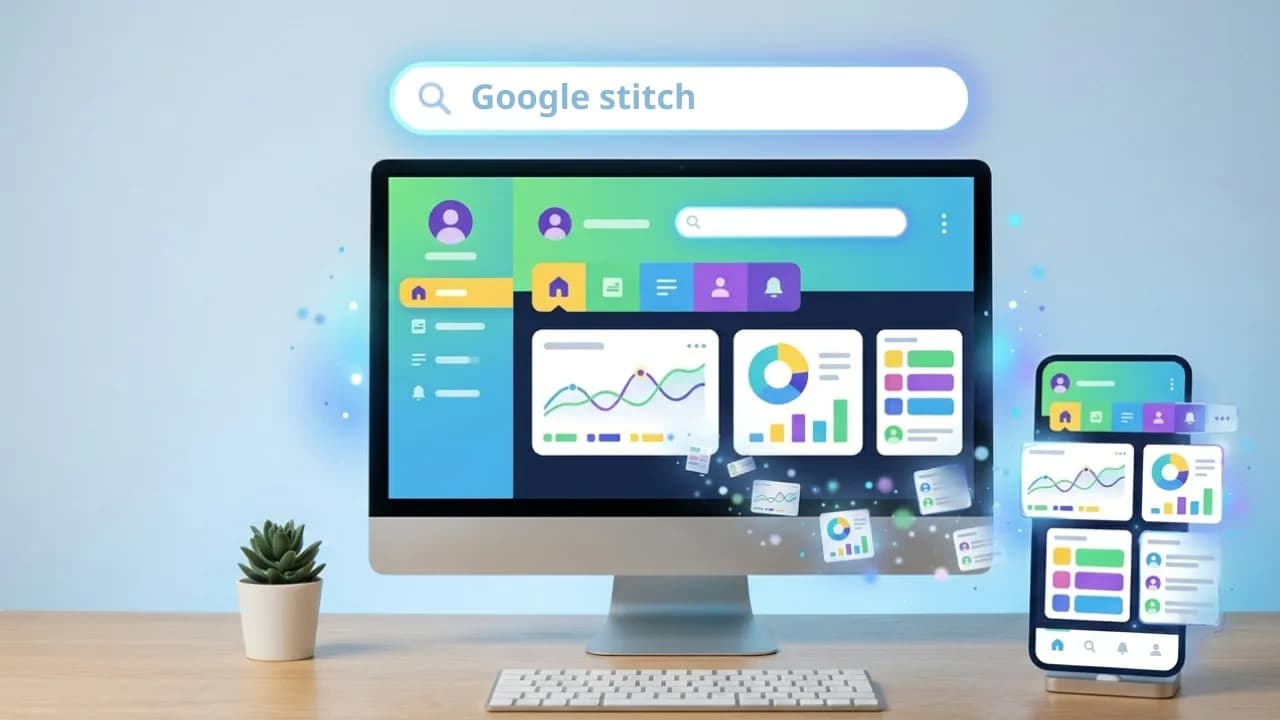
You have an idea for an app or website in your head but don't know Figma, don't know how to code, and don't want to spend weeks learning either. Google Stitch was built for exactly that situation: you describe an interface in plain English and AI generates a complete screen in under a minute. What is Google Stitch? Google Stitch is a free AI UI design tool developed by Google Labs, launched at Google I/O 2025 and currently powered by Gemini. You access it entirely through a browser at stitch.withgoogle.com with no installation required, just sign in with a Google account. What sets it apart from Figma or Canva is that Stitch doesn't ask you to drag, drop, or select individual components. You simply describe what you want, for example "a landing page for a space technology app using purple as the primary color," and Stitch generates a complete interface with colors, fonts, and layout already in place. The output is real HTML and CSS, not a screenshot. Getting started with vibe design in Google Stitch in 3 steps Step 1: Write an effective prompt The quality of your vibe design depends heavily on how you describe your prompt. A good prompt needs three elements: the type of screen, the target user, and the emotion or style you want to convey. Weak prompt example: "Create a homepage for an app." Strong prompt example: "Design a modern landing page for a SaaS product from a space technology startup called LaunchPad. Use a deep navy and neon purple color palette. Include a hero section with a 'Get Started' button, a 3-column feature grid, and a pricing section with a frosted glass effect." Here is what that produced: Stitch also supports uploading hand-drawn sketches, reference screenshots, or even voice input so AI can better understand the direction you have in mind. Step 2: Flash or Pro mode? Google Stitch currently offers two generation modes. Flash uses Gemini Flash, produces results faster, and works well for simple screens or when you want to explore multiple ideas quickly. Pro uses Gemini Pro, delivers more detailed and complex interfaces but consumes more quota. With a free account you currently get 350 standard generations and 50 experimental generations per month. For beginners this is more than enough to experiment freely, though if you are working on a real project it is worth saving Pro quota for your most important screens. Step 3: Where to export? Once you have a design you are happy with, Stitch gives you four export options. Paste into Figma: Stitch generates a code snippet you copy and paste directly into Figma. Best if you are working with a team that has designers or need more detailed editing in a familiar environment. Download as ZIP: You receive the complete HTML, CSS, and image files packaged together, ready to open locally or drop into any development environment. Export via MCP to Antigravity: This is the best option if you want to go from design to a working product. Antigravity shares Google's ecosystem so connecting to Stitch via MCP requires minimal setup, and from there an AI agent reads the full design directly and generates complete React or Flutter code without you copying or pasting any files. A detailed guide on this workflow is coming soon. Copy prompt for an AI agent: Because Google Stitch supports MCP, any platform that supports MCP can pull the full design description from Stitch directly, including Claude Code, ChatGPT, and Grok. What Google Stitch does well and where it still falls short The clearest strength is the speed and quality of the output. A complex screen with multiple components can appear in 30 to 60 seconds, with clean and immediately usable HTML and CSS. It also does a good job of maintaining consistent colors, fonts, and spacing within the same project, making multiple screens feel like they belong to the same design system. There are a few practical caveats worth knowing. Layouts can sometimes shift or components overlap, especially on screens with many layers of information, so reviewing carefully before going to production is important. The output is plain HTML and Tailwind CSS rather than React components or Vue, so if your project uses a specific framework you will need an additional conversion step unless you use Antigravity to handle that automatically. Image upload for incorporating into designs is also still fairly limited compared to Figma. Where to start with Google Stitch Don't try to design an entire app in one session. Start with the simplest screen in your idea, whether that is a login page, a homepage, or a product detail view. Write a detailed prompt following the guidance above, run both Flash and Pro to compare results, then refine by continuing to chat with AI inside the same Stitch interface. Once you have a screen you are satisfied with, that is the right moment to try exporting to an AI agent platform and turning that design into something real. The full journey from prompt to working demo can be completed in around three to four hours once you are familiar with the workflow. The refinement work afterward still takes time, but it is significantly faster than the traditional approach.

WordPress.com just did what many people have been waiting for 43% of all websites on the internet run on WordPress, and now AI can manage all of them on its own. WordPress.com has officially allowed AI agents to access, edit, and publish content directly on users' websites through the MCP protocol. This is undeniably a massive shift, especially since WordPress only opened MCP for analytics and reporting in 2025. Previously, updating or writing a new post required too many steps: log in, find the right post, edit each field, then hit save. Using AI meant connecting through third-party tools that were cumbersome to set up. Now you simply tell the AI: "Update the latest post title to X and add this excerpt." The AI edits directly on WordPress and handles the rest without switching to any other platform. What is MCP and why is it behind all of this? MCP stands for Model Context Protocol, a protocol that lets AI see and interact with external applications. It was created and backed by Anthropic, which is why it has become the common standard for so many AI developers, giving users confidence in its long-term staying power. MCP differs from a regular API in an important way: if an API is a gateway that lets developers connect two systems together, MCP is a gateway designed specifically for AI, helping language models understand the context of each application rather than just receiving raw data. WordPress.com deployed MCP late last year, and this new AI agent capability is built entirely on top of that foundation. The key advantage is that you are not locked into one specific AI. You can connect Claude, ChatGPT, Cursor, or any MCP-compatible AI client to the same WordPress.com account. To activate it, visit wordpress.com/mcp, enable the MCP features you want, and AI tools like Claude, Gemini, and ChatGPT will then be able to connect. What can an AI agent actually do on WordPress? The list of supported features is probably longer than you expect. Once connected, you can issue commands in natural language to perform almost anything covered in this MCP update. Content management: Ask the AI to create a new post, edit a title, add an excerpt, or move a draft to published status and back. The AI can even write a blog post in your usual style and save it as a draft for review before it goes live. Comment moderation: Approve pending comments, mark spam, delete inappropriate responses, and reply to the latest comment on a specific post, all from a single instruction. Content organization: The AI can create new categories, add tags to posts, and reorganize your content taxonomy without you having to navigate through each dashboard menu. Media updates: Fixing alt text on recently uploaded images or updating captions is tedious work when done manually across dozens of posts. The AI handles it in seconds. Discovery and reporting: Ask which pages get the most traffic, request a summary of recent comments, or get suggestions for ten future post topics based on your existing content. Bulk cleanup: Delete all drafts older than a year or move a batch of posts from one status to another, tasks that previously required a plugin or manual one-by-one effort. What to keep in mind before letting AI touch your WordPress site Convenient as it sounds, giving AI direct edit access to your website is still something worth thinking through carefully. WordPress.com has built in some basic guardrails: AI-generated posts are saved as drafts by default and do not publish automatically, and every change is logged in the Activity Log so you can review it at any time. However, actions like bulk-deleting posts or changing post statuses in bulk have no simple undo mechanism, so commands need to be deliberate and clearly worded before you send them. On content quality, AI can write posts in your style based on older articles, but "in your style" does not mean the output will match your actual quality. AI-drafted posts still need a human read-through before publishing, especially on specialized topics or anything where accuracy matters. Additionally, features like viewing the user list and checking plugin status are only available to administrator accounts, which is a reasonable limit to prevent unnecessary security risks. The bigger picture as platforms open up to AI agents WordPress.com currently handles 20 billion page views and 409 million visitors every month. When the platform powering 43% of the global web officially opens its doors to AI agents, the question is no longer whether AI will change how content is created. The real question is what percentage of the web will be AI-generated content within the next two years. This trend is accelerating across the board. Meta acquired Moltbook, a social network where AI agents can post and interact, while Anthropic is also testing AI-written blog content under human supervision. WordPress.com is not the first to have this idea, but they are the first to deploy it at a scale large enough to create a real impact. For everyday users, this move by WordPress brings the barrier to running a website closer to zero. You no longer need to understand how WordPress works. You only need to know what you want and say it. But precisely because the barrier is so low, low-quality content will also spread more freely, and the ability to distinguish what is actually worth reading will become an increasingly important skill for anyone navigating the web. If you are already on WordPress.com, go to WordPress now and start connecting your writing skills to it.