Claude Agent Skills: the AI feature you need to know about in 2026
Quick Summary
Claude Agent Skills are reusable modules that extend Claude's capabilities by packaging specialized instructions, metadata, and resources into a centralized folder — solving the problem of Claude forgetting complex instructions mid-conversation. Skills feature progressive disclosure, automatic activation, portability, and full transparency. This article also explains how Skills differ from Tools (which execute actions) and Workflows (which define sequences of steps), and walks through exactly how to create and use Skills directly on Claude.ai, along with practical tips for making them work effectively.
What are Claude Agent Skills?
Imagine you're an expert in a specific field. Instead of repeating lengthy instructions every time — wasting tokens and dragging down Claude's performance — Skills let you transform Claude from a general-purpose assistant into a dedicated specialist that gets to work immediately. And your role in this? You still provide the ideas, references, and data. Skills then build a structured standard from that input and enforce the right process every time Claude executes it.
Even as large language models (LLMs) gain increasingly large context windows, Claude can still lose track of complex instructions when a conversation grows too long — or forget everything when a new session begins. Claude Agent Skills were built to solve this problem at the root. They are reusable capability modules that extend Claude's functionality by packaging specialized instructions, metadata, and resources such as scripts or document templates into a single centralized folder.
Core characteristics of Skills
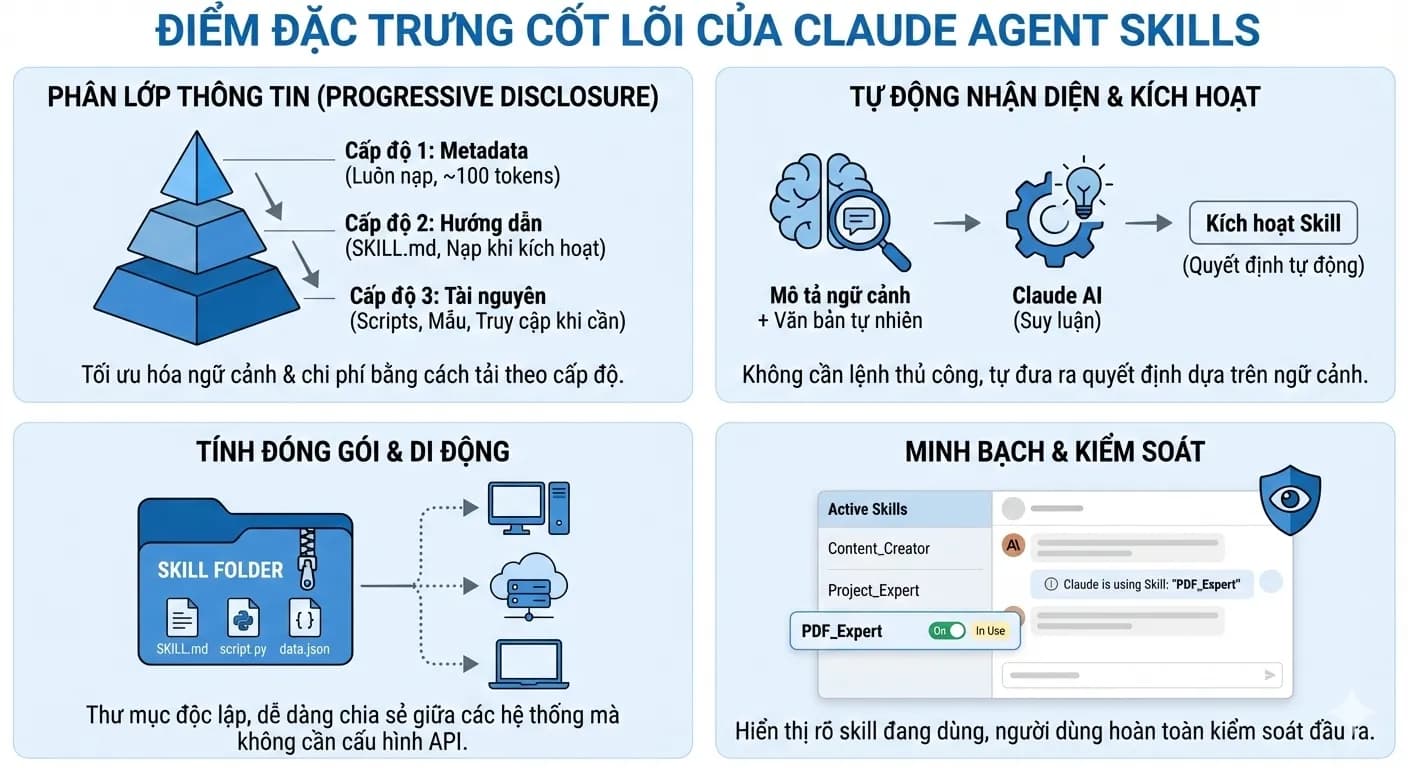
- Progressive disclosure — To optimize context usage and cost, Skills are loaded into Claude across three levels:
- Level 1 (Metadata): Always loaded at the start of a session — just the name and description (~100 tokens) so Claude knows the Skill exists.
- Level 2 (Instructions): The full contents of the
SKILL.mdfile are only loaded into memory when Claude decides to activate the Skill. - Level 3 (Resources): Additional scripts, templates, or reference documents are only accessed when the Skill's workflow requires them.
Automatic recognition and activation
Claude decides on its own when to use a Skill, based on natural language context descriptions — no manual commands or complex classification algorithms required from the user.
Portability and encapsulation
Each Skill exists as a self-contained folder on the file system, making it easy to share across projects, machines, or organizations without any complex API configuration.
Transparency and control
Claude displays exactly which Skills are currently active, giving users full visibility and control over outputs — especially useful when managing a large library of Skills.
How Skills differ from Tools and Workflows
The distinction between Skills, Tools, and Workflows in the Claude ecosystem comes down to their fundamental nature: one provides reasoning guidance, one provides executable actions, and one defines a sequence of steps.
- How do Skills differ from Tools?
The core difference is that Skills create instructions while Tools execute actions. Tools are runnable pieces of code — read, write, bash, or Python scripts — that perform a specific task and return a result immediately. Skills, by contrast, are not executable code. They function more like an extended knowledge module, containing Markdown instructions that teach Claude how to think and what rules to follow in a given domain.
How they operate: Tools work synchronously and directly (run → result). Skills operate through progressive disclosure, loading detailed instructions into the conversation context only when Claude's reasoning determines the task is a match.
Their roles: Skills make Claude smarter in a specific domain (such as PDF handling or marketing strategy), while Tools are what Claude uses to take action after Skills have guided its thinking.
- How do Skills differ from Workflows?
The relationship here is that Skills encapsulate and direct Workflows.
Process encapsulation: A Workflow is a repeatable sequence of steps for completing a complex task — for example: research → draft → quality check → publish. A Skill acts as the process handbook, containing that entire Workflow inside the
SKILL.mdfile.Flexibility: Instead of the user manually coordinating each step in a Workflow, Skills let Claude automate that coordination. Claude reads the Workflow defined in the Skill and decides on its own when to call which Tool to complete each step.
Memory management: Unlike conventional Workflows that must load all instructions into the prompt upfront — wasting tokens and introducing confusion — Skills only activate the relevant Workflow when the context matches, making context management significantly more efficient.
How to create a Skill directly on Claude.ai
The ability to create and use Agent Skills is now available to all users on both the web and desktop versions of Claude. The 4AIVN team is sharing a straightforward way to create a Skill for drafting rental contracts — so even users with no coding background can follow along. For more advanced customization, check out our article on how to create professional Claude Skills with 8 content layers.
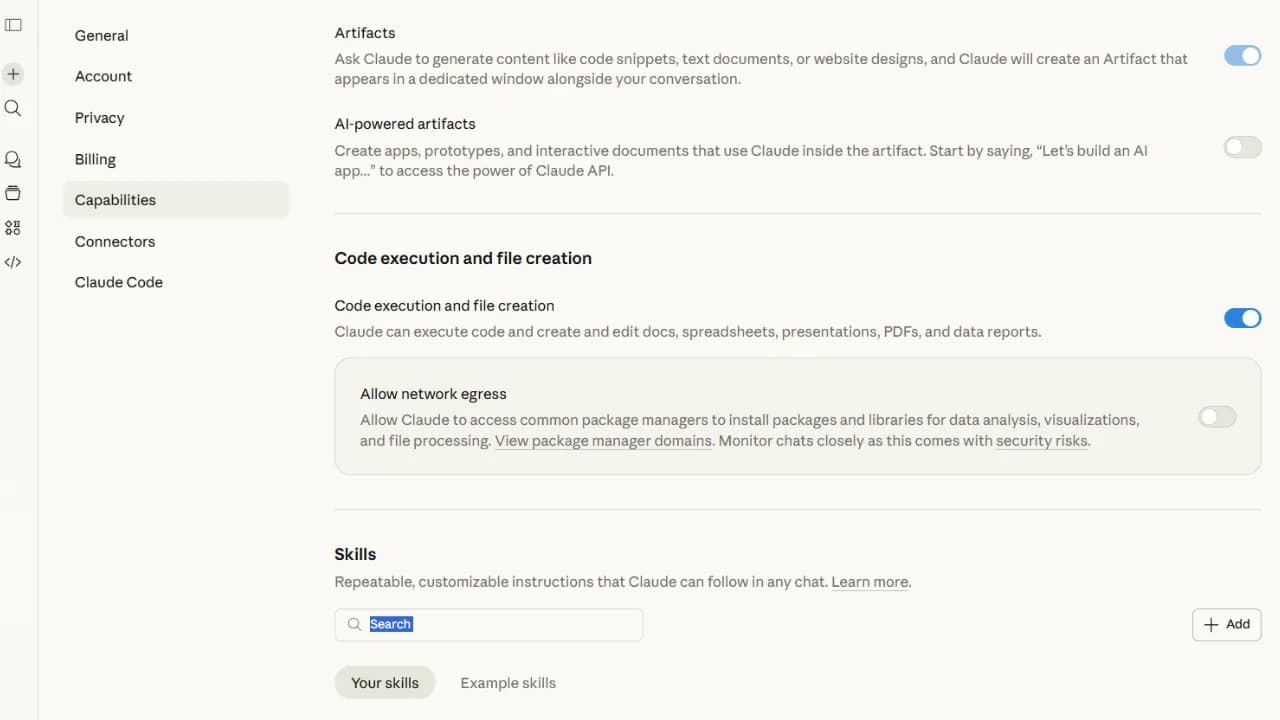
Step 1: Enable the Skills feature
Before getting started, you need to turn on the necessary permissions in settings:
- Click on your profile icon in the bottom-left corner.
- Go to Settings > Capabilities.
- Toggle on both features: Code execution and file creation.
- In the latest version, all Skills have been moved under the Customize section. Go to https://claude.ai/customize/skills to view all your Skills.
Step 2: Upload your reference file
At this stage, only use the Add button in the Skills section if you already have a pre-built Skill file to upload. If you're creating a new Skill from scratch, don't use the Add button — you won't be able to attach input files there. Instead, start from the chat screen.
Since building a Skill takes some time, prepare your reference files in advance to speed up the process. These can include sample output files, or documents describing your role, workflow, output format, examples, step-by-step instructions, and clarifying questions Claude should ask.
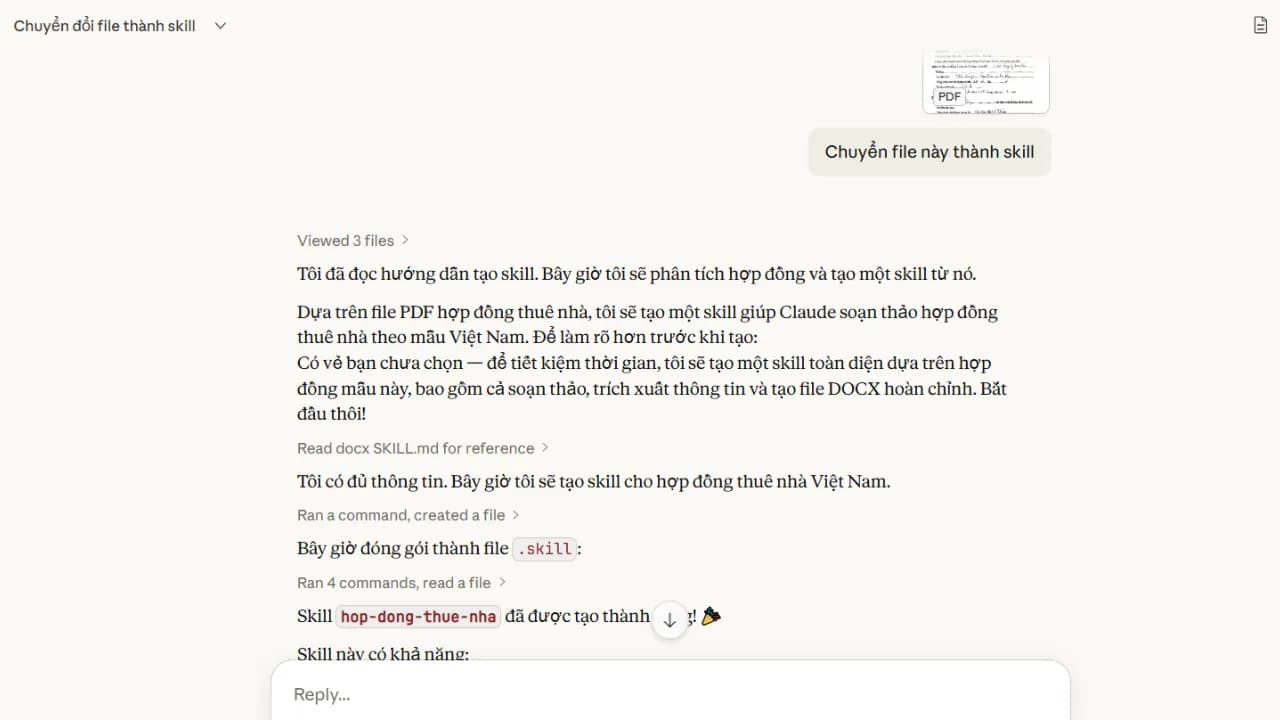
Once your files are ready, upload them to Claude in the chat screen as you normally would. In this example, we're uploading a rental contract PDF — and you can upload any file type with confidence, as Claude handles images, PDFs, Word documents, and Excel files equally well.
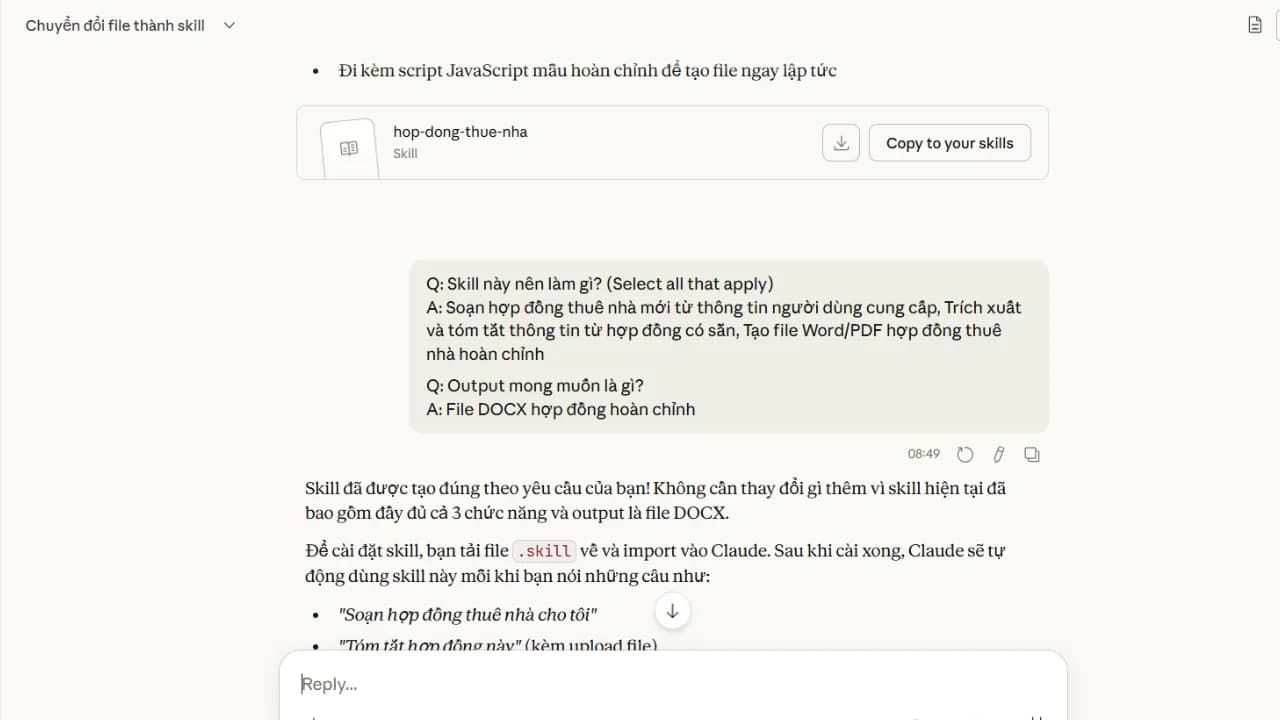
Then type the prompt "turn this file into a Skill." Claude will ask a few follow-up questions, then automatically activate the skill-creator to start building the SKILL.md file for you. You can watch Claude's reasoning process unfold — or grab a coffee, since everything runs automatically.
Step 3: Install and use
Once Claude finishes drafting the instructions, it will have created a Skill called rental-contract along with a Copy to your Skills button at the bottom of the chat.
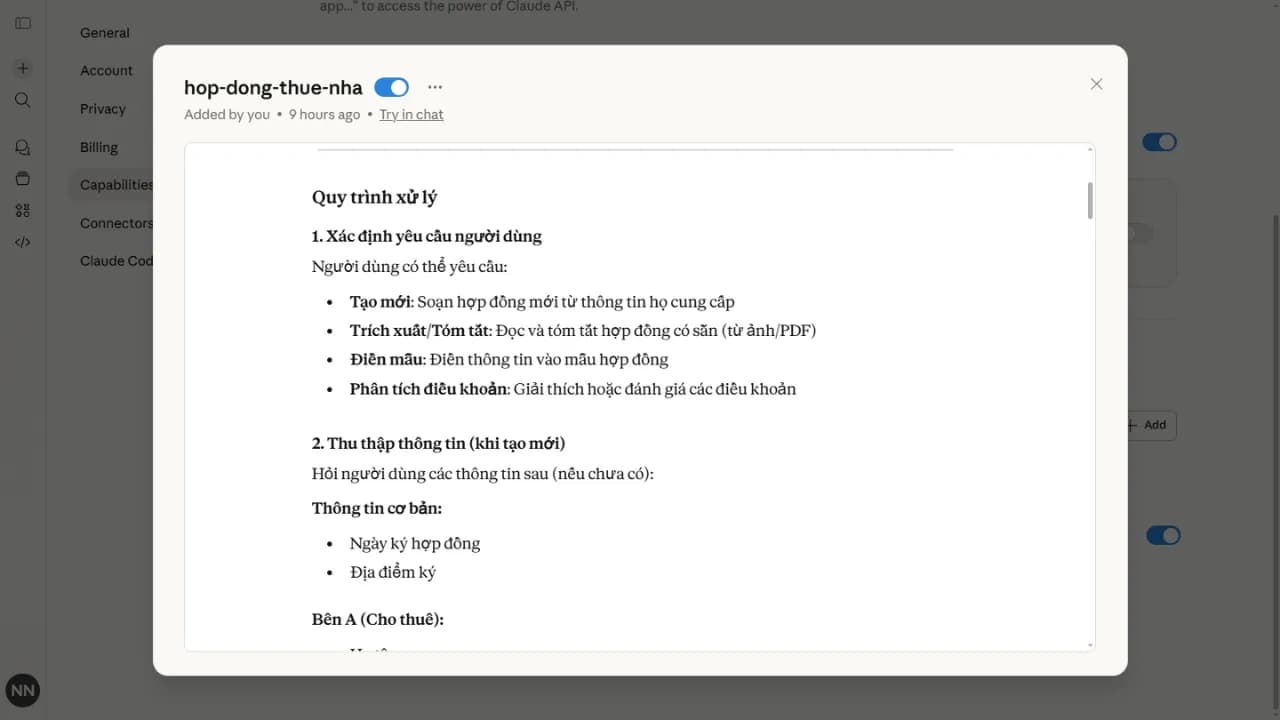
Click that button to install the Skill into your personal library under Capabilities.
Then test it with a prompt like: "Use my [skill name] Skill to draft a rental contract" to confirm it's working. If the output isn't quite right, ask Claude to revise the Skill until it meets your expectations.
Basic structure of a SKILL.md file
If you want to edit or create a Skill manually, every Skill file contains two main sections:
- Header (Frontmatter): Written in YAML format, containing fields like
name(the Skill name, up to 64 characters) anddescription(what the Skill does, up to 1,024 characters). - Body (Instructions): Written in Markdown, containing step-by-step instructions, rules, desired output formats, and concrete examples.
Tips for making your Skills work effectively
Be specific
Give your Skill a detailed name and description. For example, rental-contract will perform far better than just contract.
Flexible model switching
Inside a Skill, you can specify which model Claude should use — and switch between them freely. This lets you use Sonnet for routine tasks and switch up to Opus only when genuinely needed, reducing cost without compromising output quality.
Keep instructions modular
Avoid letting your SKILL.md file grow beyond 5,000 words — overly long instructions slow Claude down and reduce efficiency. For lengthy instructions, break them into separate Markdown files stored in the References section.
Test for consistency
Run your Skill two or three times with the same input to confirm the output consistently follows the expected format and style.
A note on speed
When using Skills, Claude won't respond as quickly as ChatGPT or Gemini — but the quality of the output makes it worth the wait. Give it some time and you'll find the results speak for themselv