4AIVN
Back to News

Will HTML replace Markdown when working with AI?
Published on 10 May, 2026
Will HTML replace Markdown when working with AI?

Quick Summary

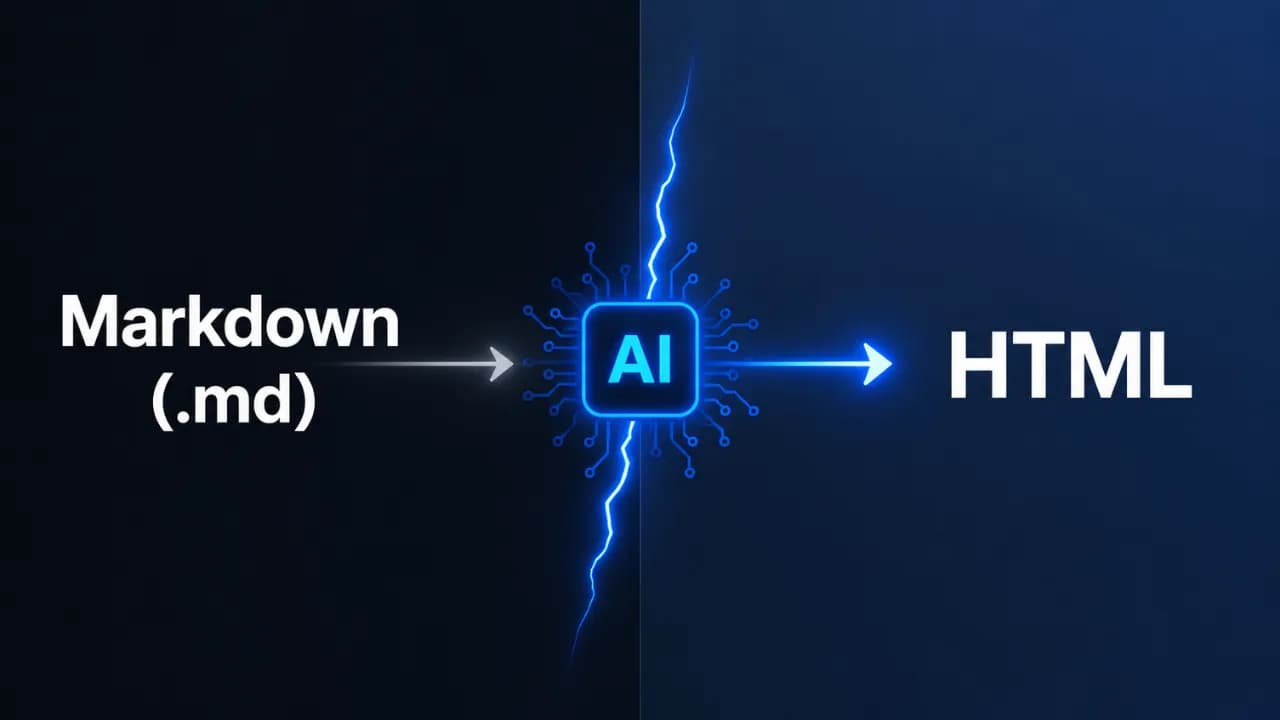
Markdown was once the default choice when working with AI due to its lightweight nature and resource-saving capabilities—but that was a habit from the era of models with limited memory. With modern AI now handling context windows of up to millions of tokens, engineer Thariq Shihipar from the Claude Code team argues that HTML is a more suitable format for outputs requiring layout, color, and interactivity. His article analyzes 9 specific categories of scenarios—from code reviews and report generation to UI prototyping—where HTML performs significantly better than linear text. Additionally, JSON has its own role when the output needs to be machine-readable for further processing, rather than for direct human consumption. These three formats serve three different purposes, and explicitly specifying them in your prompts is a small change that makes a big difference in the quality of the results.

Markdown has been the default standard when working with AI for years, but an engineer from Anthropic's Claude Code team just raised a thought-provoking question: is that habit really the best choice? Thariq Shihipar's short post gathered over 15,000 likes on X in just a few days, and the reason is more convincing than you might think.

Markdown was born in the era of token-poor AI

Looking back at the days of GPT-4 with a context window of only 8,192 tokens, Markdown was an entirely reasonable choice. HTML was bulkier, consumed more resources, and in that constrained context, Markdown's simplicity was a real advantage for saving tokens. Thus, Markdown became the implicit standard, and that habit has stayed with us ever since. Even when Anthropic created the concept of Skills on Claude, they also set Markdown as the standard with the SKILL.md file—anyone who works with skills is surely familiar with this default.

However, current AI models operate on a completely different scale. Many models now support context windows from 200,000 to 1 million tokens, and the cost of processing is no longer a major barrier (as Thariq Shihipar points out). He argues that this is the perfect time to reconsider that default.

What can HTML do that Markdown cannot?

The core reason Thariq presents is simple: some types of information are inherently spatial, but Markdown forces them to be linear text. When you compare three technical approaches, you need to see them side-by-side, not read them one after another and try to keep them in your head. When you review a code diff, you need to see the structure of the changes, not just a wall of text.

HTML solves exactly that problem, which is why Thariq listed 9 specific groups of scenarios where HTML outclasses Markdown:

  • Discovery and Planning: Comparing multiple approaches side-by-side instead of sequentially, and then transforming them into an implementation plan complete with flowcharts and timelines.
  • Code Review and Understanding Project Structure: Highlighting changes directly with colors based on severity, and showing module diagrams as boxes and arrows—rather than plain text.
  • UI Design: Displaying actual color palettes that can be copied instantly, and rendering UI component variants directly instead of describing them in words.
  • Rapid Prototyping: Creating interactive animation adjustment panels with slider controls, and screens that can actually be clicked—something Markdown cannot express.
  • Diagrams and Illustrations: Utilizing inline vector graphics to draw actual flowcharts, rather than stitching together ASCII characters.
  • Slide Decks: A few <section> tags and 20 lines of JavaScript can form a slide deck navigatable with arrow keys, without needing specialized software or export steps.
  • Research and Learning: Structuring documents with collapsible sections, code tabs, and glossaries—rather than dumping the entire content in a single vertical stream.
  • Periodic Reports: Weekly status summaries with sparklines and color-coded progress indicators that actually encourage people to read, rather than just skim.
  • Custom Editing Interfaces: Building drag-and-drop task boards or feature flag dashboards with dependency alerts—making it a functional tool rather than just text to read and forget.

Thariq has assembled 20 files illustrating all of these categories at thariqs.github.io/html-effectiveness, each of which opens directly in your browser without requiring any installation.
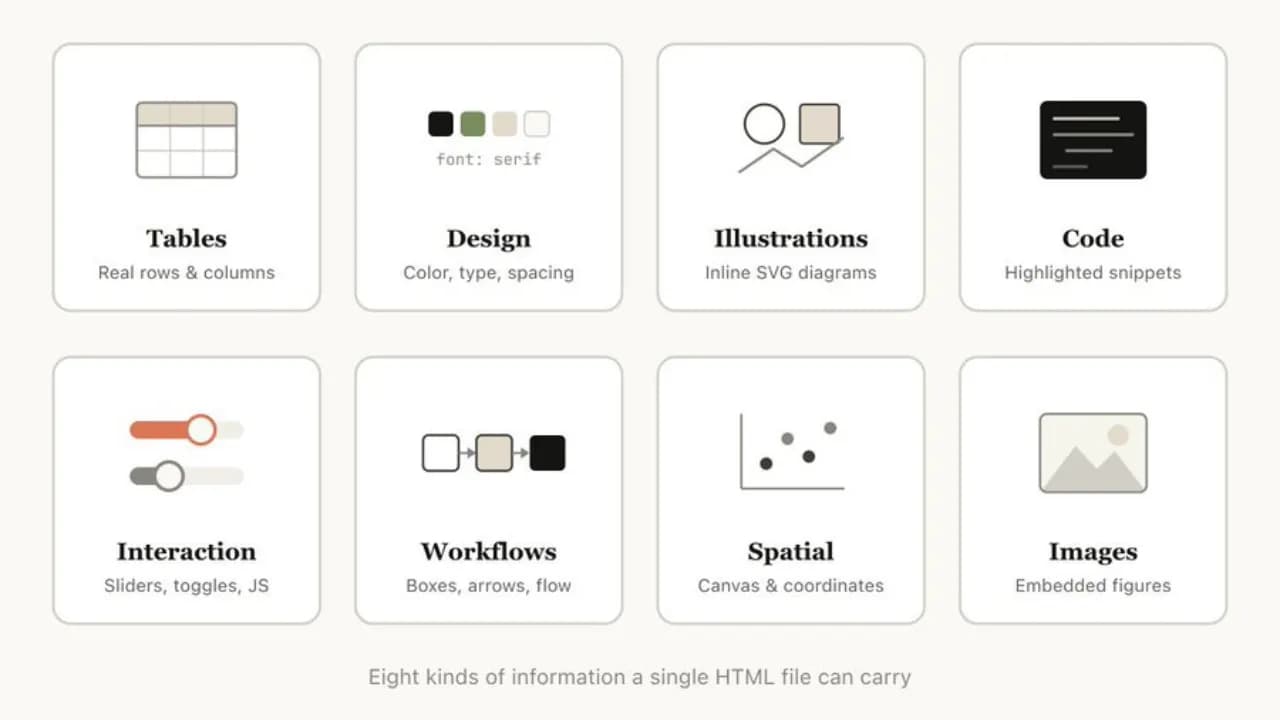
20 illustrative HTML files from Thariq Shihipar (source: thariqs.github.io)
20 illustrative HTML files from Thariq Shihipar

How to use HTML with AI in practice?

Applying this is not complicated; it just requires a shift in how you write prompts. Instead of letting the model choose the output format, explicitly specify HTML when the content is meant to be reviewed, interacted with, or shared with others.

For example, here is a prompt Thariq suggests for reviewing code:

Similarly, you can ask the AI to generate an implementation plan as HTML with a timeline and data flow diagram, or a weekly status report with small charts and progress-colored indicators.

Simon Willison, author of the famous tech blog, also admitted that this article made him reconsider his habit of using Markdown from the GPT-4 era until now. When modern AI models can embed vector graphics, interactive widgets, and in-page navigation, Markdown is no longer the obvious default choice.

Markdown still has its place, but not everywhere

Thariq is not saying we should always use HTML; rather, he makes a clear distinction: Markdown is suitable for casual chats, short code snippets, brief answers, and anything that is pure text. Meanwhile, HTML shines when the output requires spatial layouts, colors, interactivity, or complex structures—where the content is multi-dimensional enough that Markdown would start flattening the information rather than conveying it effectively.

Thariq doesn't mention JSON in his article, but it is also a very popular format when working with AI, especially for those who frequently use n8n, Make, or Zapier. Nevertheless, each format brings its own flavor to specific situations.

How Markdown, HTML, and JSON divide their usage

The debate is actually not just about Markdown or HTML. JSON is also a very popular format when working with AI, especially in data processing workflows and system integrations. These three formats serve three different purposes, and understanding those boundaries helps you choose the right tool for each situation.

  • Markdown is best for text read directly in chat: notes, short explanations, code snippets, simple documents. Fast, lightweight, no need to open anything else.
  • HTML is best when the output needs to be visualized, interacted with, or shared: reports with layouts, diagrams, comparison tables, slide decks, custom interfaces. Open with a browser and you are good to go.
  • JSON is best when the output needs to be processed by a machine: storing structured data, transferring between systems, or feeding into the next step of a workflow. Humans can read it, but it is not meant for reading.

In other words, JSON does not compete with HTML or Markdown in terms of presentation; it serves an entirely different purpose. The real issue is that many AI users default to receiving output in Markdown even when they need HTML to view it or JSON to process it. By simply specifying your preference in the prompt, the AI will adapt.

What does this change for the average AI user?

If you use AI primarily for Q&A or writing, this change has less impact. But if you are using AI for more complex tasks like data analysis, project planning, document reviews, research synthesis, or creating reports for colleagues, this is a small prompt adjustment that creates a clear gap in output quality, regardless of which AI tool you are using.

You should try it once: next time you need the AI to compare options or summarize a complex document, add "generate as an HTML file" to the end of your prompt. Open that file in your browser and compare it to how you usually do it with Markdown or JSON—the results will speak for themselves.
Discussion (0)

Log in to join the discussion.

No comments yet. Be the first!

Related Articles

Create a free mini app with just a few clicks using Google AI Studio

Artificial intelligence (AI) is fundamentally changing how people build applications. You no longer need to be a professional developer. With a smart AI assistant, you can turn any idea into a real product. Google AI Studio is the clearest proof of that shift. The platform lets anyone, even without coding knowledge, build their own app. With the latest update, creating an AI app is as simple as having a natural conversation: describe your idea in plain language, and let AI handle the rest. Google AI Studio: Build AI apps without code and create Android apps with ease Google AI Studio is a browser-based development environment designed to simplify prototyping and building applications on top of Google's powerful AI models. Notably, the platform now supports direct creation of complete Android applications, opening the door for anyone who wants to ship a mobile product without writing a single line of code. If Gemini was once described as the "brain" of an application, Google AI Studio now gives it "hands and feet" through direct connections to APIs and SDKs within Google's ecosystem (via the "Supercharge your apps with AI" section). This makes expanding functionality incredibly easy, and you can make your app behave exactly as intended without manually configuring APIs or SDKs from scratch. Third-party APIs and SDKs still require manual input, but Google's vast ecosystem including Nano Bananas, Veo 3, Text-to-Speech, Google Search, and especially Google Maps covers nearly every common need out of the box. Through personal testing, Google Maps works reliably for mini apps in Vietnam, such as navigation tools or real-time traffic viewers. When pulling data from Google Search, the quality of results is impressive enough to eliminate the need for third-party scraping tools entirely. Another major advantage: Google AI Studio is currently completely free to use. The free credits Google provides are generous enough to comfortably explore Gemini 3, Nano Banana Pro, Veo 3.1, and many other tools for personal use without spending a thing. Step-by-step guide to creating a mini AI app Building an app in Google AI Studio is straightforward. Just follow these steps: Step 1: Access and set up Visit: Go to the Google AI Studio tool page. Sign in: Log in with your Google account. Start building: Open the "Build" tab. Under the Start tab, you can choose an AI model (default is Gemini 3.5 Flash) and select a programming language: React, Angular, or Android. If you skip this, AI defaults to React. Step 2: Come up with an app idea If you don't have a specific idea yet, browse the App Gallery to see sample apps built by Google and the community. It's the fastest way to find inspiration and understand what's possible. If you want something even more hands-off, just click the I'm feeling lucky button in the Start tab. Google AI Studio will instantly suggest interesting ideas, complete with example API and SDK integrations (under the Supercharge your apps with AI section) and the prompts AI uses to build them. It saves time and teaches you how AI thinks when creating apps. If you already have a clear idea, move straight on to the next step. Step 3: Write a specific prompt If you don't have a detailed prompt covering all the functionality, language, and interface requirements like the samples in the I'm feeling lucky button, that's completely fine. You can create an app with just a single sentence, for example: "Create a photo collage app for me." From there, AI will automatically make all the decisions and carry out the remaining steps for you. That said, the more detail you provide, the closer the result will be to your vision, which means less time editing afterward. If possible, include reference images or mockups from tools like Figma or Canva, since AI can understand and recreate interfaces almost exactly from those references. Don't forget to add extras in the Supercharge your apps with AI section to let AI automatically connect the APIs or SDKs you need, or even enable intelligent reasoning mode for your app. Here's an example of a detailed prompt you can reference: "Create an AI Web App that allows users to: Upload 2 images (1 &amp; 2) so the app combines them into 1 composite image. Support multiple aspect ratios: 1:1, 16:9, 4:3, 3:2. Include image preview and a Download button. Save creation history (including result image, prompt, and timestamp)." Once your prompt is ready, just click Build and wait a few seconds to see the result. Step 4: AI automatically handles the build Build process: AI Studio runs through several stages, including: Defining the UI Scope. Developing the React App. Planning the app structure. Integrating Gemini API. Auto fix errors. Preview and edit via conversation: A live preview of your mini app appears directly in the browser, so you can see it in action right away. Developers can edit the code directly in the code panel. But if you're not technical, that's no problem at all. Just chat with AI to add, remove, or adjust features without touching a single line of code. For example, you could say: "Add images 3 and 4 so I can merge four photos into one" or "Switch the interface to dark mode." If you didn't add APIs or SDKs in the "Supercharge your apps with AI" section earlier, don't worry. With a simple prompt, AI will automatically integrate the necessary APIs or SDKs into your mini app quickly and with minimal effort. You can even request advanced features like: Generate video from images using Veo 3, and the app will automatically connect to the Veo API. Add a speech-to-text button to make the app more interactive. And the most exciting part: you can edit your app visually, just like working in Canva or Figma, using the Annotate app button where you can draw, add text, change colors, and more, all in the most intuitive way possible. Step 5: Test and deploy Action How to do it Test in browser Click the "Run" button or view the live preview. Share app via link Click "Share" and copy the link. Download source code Click "Download" (ZIP file containing React + TypeScript code). Deploy to cloud Click "Deploy" and select Google Cloud Run (requires a Google Cloud account). Can you build a complete app with Google AI Studio? For personal use or quick idea testing, Google AI Studio is an excellent choice: easy to use and nearly zero cost. However, if you want to build a full-stack application with a proper backend, UX, and UI without any coding knowledge, you'll want to consider more suitable platforms. Comparison with Google Antigravity IDE While Google Antigravity is an IDE focused on helping professional developers write code faster through asynchronous background agents, Google AI Studio targets non-technical users in the no-code/low-code space. With AI Studio, there's no software to install and no environment to configure. Everything happens through natural language descriptions right in the browser. Antigravity, on the other hand, offers deeper control over source code, multi-model support (Claude, GPT), and is better suited for complex projects that require refactoring an existing codebase. Goal Recommended tool Personal use, rapid prototyping, idea testing Google AI Studio Commercial app development, full-stack products, scalability needs Google Firebase, Lovable, Bolt, Replit, Antigravity Google AI Studio is not the optimal choice for large-scale products or applications requiring high security. Instead, you can download the source code from AI Studio and upload it, or sync it directly via GitHub, to continue building on platforms like Firebase Studio (within the Google ecosystem), Lovable, Replit, Bolt, or Antigravity. These platforms help you complete your app with powerful backend features while still leveraging the AI foundation built in Google AI Studio.

Nam
24 May, 2026
Google I/O 2026: Flow gets a major upgrade with Gemini Omni

Google isn't just adding a new model to Flow. At Google I/O 2026, the company is turning Flow into an agentic AI creative studio — complete with custom tools, conversational video editing, and a mobile app. For video creators, the signal is clear: the race is no longer about generating a beautiful clip from a single prompt, but about the ability to edit, iterate, and refine ideas like a real production pipeline. Gemini Omni turns Flow into a conversational video editing studio According to Google's announcement on May 19, 2026, Flow has been upgraded with Gemini Omni, with Omni Flash being the first model introduced to the experience. Google describes Omni Flash as a model capable of generating content from multiple input types — starting with video — while combining Gemini's intelligence with Google's generative media models. The simplest way to understand it: think of Omni Flash as the video equivalent of what Nano Banana did for images. If Nano Banana made photo editing feel more natural and conversational, Omni Flash brings that same approach to video — where users can pull from real-world inspiration, existing footage, and iterative prompts to keep refining their work. Critically, Google says Omni Flash improves character consistency, meaning identity and voice can be preserved across multiple scenes. Flow Agent and Tools bring AI into the entire creative workflow The second major upgrade is Google Flow Agent. Rather than simply accepting a prompt and returning a result, this agent is designed as a creative collaborator capable of planning, reasoning through complex tasks, and supporting users at multiple stages of the process. Google gives examples like the agent suggesting dialogue for a specific scene or proposing story development directions. As a project deepens, Flow Agent can generate multiple variations simultaneously to give users more options, and supports batch editing so changes are applied across many assets at once. Once enough material is gathered, the agent can also organize assets into collections and rename them in more intuitive ways. This feature is now available to all Flow users globally. The more interesting part is Google Flow Tools, where users can build their own tools and workflows using natural language. If you want a custom image preset, a video resize tool, or a personalized shader, Flow Tools lets you describe what you need rather than writing code. In other words, the vibe coding concept is moving into the content creation environment — not just sitting inside a developer's IDE. All Flow users globally can access pre-built Tools Google AI users can create and remix their own Tools Custom tools can be shared for others to remix Flow Music also gets meaningful upgrades for music creators Google Flow Music received a set of new features as well, with the most significant being the ability to edit songs at the section level. Users can select a specific portion of a track to rewrite lyrics, translate them, change the beat drop, or sample a passage and develop it in a different direction — all without affecting the rest of the track. The covers feature lets users transform the style of an entire song while preserving its original melody and structure. For example, a track could be shifted into a lo-fi study aesthetic for a study playlist or background content. For creators who are newer to AI music tools, this approach is far more accessible than having to regenerate from scratch every time they want to change the sonic character of a piece. Gemini Omni also appears in Flow Music to support music video creation. Users can work conversationally with the agent, directing style, subjects, and shots to match the story and rhythm of the underlying track. This feature is available to Google AI users, and it signals Google's intent to connect three layers of creative work: audio, visuals, and narrative. A mobile app takes Flow beyond the desktop Google also announced mobile apps for both Flow and Flow Music. The web version remains the most capable environment, but the mobile app lets users capture ideas, run quick tests, or make fast edits when they're away from their computers. Conclusion The biggest takeaway from this round of upgrades isn't any single feature. Google is connecting Gemini Omni, Flow Agent, Tools, and Flow Music into a more complete end-to-end workflow — from ideation and asset creation, through batch editing and resource organization, to publishing both music and video content. If you work with video, music, or short-form content, the most practical starting point is to bring in a real asset of your own and see how well Omni Flash holds character consistency, voice, and editing continuity across multiple rounds. If it handles that reliably, Flow will no longer be just an AI video generation tool — it becomes a content production environment worth watching closely through the rest of 2026.

Nam
21 May, 2026
Google I/O 2026: Antigravity 2.0 Major Improvements, but Interface Resembles Codex

At the Google I/O 2026 event, the search giant stunned the entire developer community by officially announcing Antigravity 2.0. No longer a conventional AI-integrated IDE, Antigravity has now transformed into a standalone desktop application powered by Gemini 3.5 Flash, accompanied by an AI Ultra subscription package priced at $100/month. However, the complete removal of the integrated source code editor in favor of a minimalist Codex-like interface is generating intense controversy. How Antigravity 2.0 Has Transformed The decision to completely separate the source code editor from Antigravity 2.0 marks a bold move by Google in reshaping the future of software development. Instead of attempting to integrate AI features into a traditional IDE, this new version functions as a dedicated AI agent orchestration hub. This means users will focus entirely on setting up tasks and monitoring workflows rather than directly editing individual lines of code. This change is most clearly demonstrated by the launch of the AI Ultra service package, priced at $100 per month. This premium subscription offers 5 times the usage limit compared to the current AI Pro package, targeting businesses and professional developers who need to operate a large number of autonomous agents simultaneously to solve complex problems. Power from Gemini 3.5 Flash and Asynchronous Execution Workflow At the heart of Antigravity 2.0 is the Gemini 3.5 Flash large language model, specially optimized for high-speed agentic tasks. Thanks to its superior processing capabilities, the new system supports highly complex multi-agent workflows, allowing multiple subagents to collaborate on a large project. More specifically, these subagents will run entirely asynchronously in the background. This mechanism ensures that the application's main interface never freezes or is interrupted during processing, helping developers maintain a smooth workflow. This is a significant improvement over its predecessor, which often experienced delays when processing large codebases. New Tool Duo: Antigravity CLI and SDK Antigravity CLI, written in Go, completely replaces the old Gemini CLI, delivering high performance and extremely fast response times in the terminal. Gemini CLI and Gemini Code Assist IDE extensions will cease service from June 18, 2026. Google AI Pro and Ultra users need to switch to Antigravity CLI before this deadline. Antigravity SDK, written in Python, allows developers to build, customize configurations, and deeply integrate autonomous agents into their projects. Minimalist Codex-like Interface and Community Controversy Despite boasting numerous powerful technological upgrades, Antigravity 2.0 is facing a wave of criticism from the user community due to radical interface changes. The new interface is now merely a minimalist console focused on a chat window for issuing commands to agents, completely eliminating the familiar IDE workspace. Many opinions suggest that this design looks exactly like a replica of the Codex or Claude Desktop application. This excessive minimalism has left many developers feeling disappointed and empty, as they no longer have the ability to quickly view and modify files directly as before. Having to switch back and forth between Antigravity and an external editor significantly reduces their actual work efficiency. How to Restore the Traditional IDE Experience for Users To appease the negative reactions from the community, Google has offered some temporary solutions for those not yet ready to adapt to the new interface. Users can visit the official Antigravity homepage to download a separate IDE version. This version will help restore the familiar integrated workspace with traditional source code editing features. However, Google also issued a warning that this is only a temporary solution. In future updates, the agent management interface will be completely removed from the IDE as the company focuses all development resources on the standalone 2.0 application. Therefore, familiarizing oneself with the new working model is inevitable for developers in the long term. The Rapid Evolution of Tools like Antigravity and Codex The separation between traditional code editors and agent control interfaces is clear evidence that AI is shifting from a supportive tool to an autonomous partner. Developers need to proactively familiarize themselves with new control tools like CLI and SDK to gradually transition their role from direct code writers to managers and orchestrators of intelligent agent ecosystems.

Nam
20 May, 2026
Firefox's shake to summarize feature is now available on android

Have you ever opened a 3,000-word article on your phone and instantly debated whether to read it or just leave? Mozilla has an answer: shake your phone. The "Shake to Summarize" feature — named one of TIME's best inventions of 2025 — has officially launched on Android alongside Firefox 150. What is Shake to Summarize and how does it work? Shake to Summarize is an AI feature built directly into Firefox that lets users get an instant summary of any webpage without leaving the browser or opening another app. There are three ways to trigger it: Shake your phone while viewing a page Tap the lightning bolt icon in the address bar Go to the three-dot menu → Summarize Page Within seconds, Firefox opens a small panel displaying the key points of the page. What makes it stand out is how the summary adapts to content type — recipes get the actionable steps, sports articles focus on scores and stats, and news pieces highlight the key developments. The feature works with pages under 5,000 words. For longer pages, Firefox will not be able to generate a summary. The journey from iOS to Android Shake to Summarize first launched on iOS in September 2025, initially available only to US users in English. The response was strong enough that Mozilla received a special mention in TIME Best Inventions 2025 — a recognition rarely given to a browser feature. The Android version went through careful testing on Firefox Nightly before making it into the official Firefox 150 release in April 2026. Prior to that, trying it on Android required going to Settings → About Firefox Nightly → tapping the logo three times to enter "Secret Settings" and manually enabling it — a process clearly meant for technical users only. What AI powers this feature? Mozilla doesn't use a single model — it splits the work by device: On iPhone 15 Pro and later running iOS 26+, summaries are generated entirely on-device via Apple Intelligence, meaning data never leaves the phone. On all other devices, page content is sent to Mozilla's AI servers, processed, and returned to the user. On Mozilla's end, the engineering team tested several models — including Mistral Nemo, Mistral Small, Jamba 1.5 Mini, Gemini Flash 2.0, and Llama 4 Maverick — before settling on Mistral Small as the primary model. The reasoning: Mistral Small has open weights, fast inference, and significantly lower cost compared to alternatives, while still delivering high-quality summaries. Mozilla provides Shake to Summarize for free and covers all inference costs itself, with no charge to users. What if users don't want AI? This is where Mozilla handled things fairly well. After facing pushback from long-time users concerned that Firefox was abandoning its core privacy values, Mozilla added a setting to disable all AI features entirely. On desktop, a "Block AI enhancements" option lets users turn off all current and future AI features, or selectively keep specific ones. On Android, Shake to Summarize is tied to the new AI Controls panel — when AI is turned off, both the shake gesture and the summarize button are disabled simultaneously. The feature currently supports English content only. Users outside English-speaking regions will need to switch their system language or wait for Mozilla to expand language support. What else is new in Firefox 150? Alongside Shake to Summarize on Android, Firefox 150 brings several other noteworthy updates: Open links in split view to browse two pages side by side Copy URLs from multiple tabs at once Real-time private translation on a dedicated translation page Free built-in VPN now expanded to Canada (previously limited to select markets) A new profile management system for all users Firefox 151 is expected on May 19, 2026 and may continue expanding AI Controls on mobile. Real-world assessment Shake to Summarize addresses a genuinely real problem: skimming on a phone is uncomfortable, but reading in full takes too long. Rather than asking users to open yet another AI app, Mozilla embeds summarization directly into the browsing flow — the shake gesture may look playful, but it's actually the fastest shortcut imaginable on mobile. The biggest limitation right now is the English-only restriction, which significantly reduces its value for non-English speakers. But if Mozilla continues its language expansion roadmap — as it has done with its translation feature — this could become one of the most compelling reasons to return to Firefox on mobile.

Nam
19 May, 2026