4AIVN
Back to News

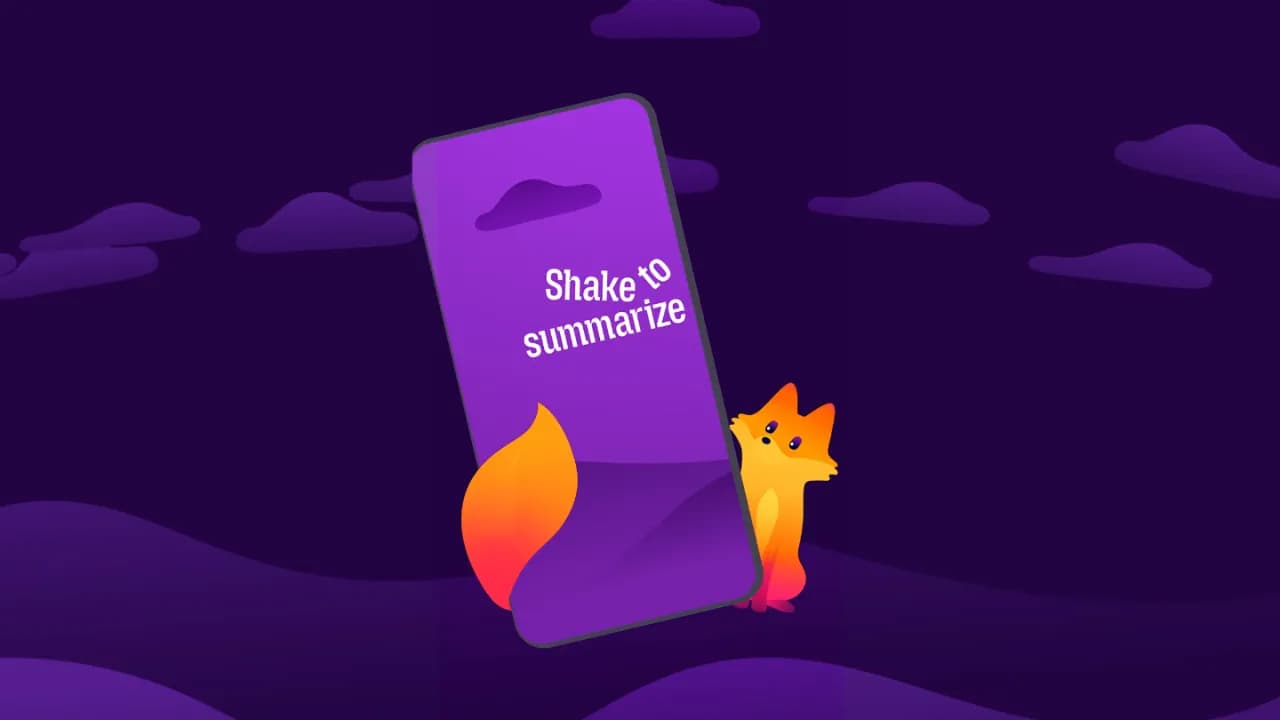
Firefox's shake to summarize feature is now available on android
Published on 19 May, 2026
Firefox's shake to summarize feature is now available on android

Quick Summary

Firefox 150 brings the Shake to Summarize feature to Android — tap, shake, or use the menu to instantly get the key points of any webpage. Previously an iOS-only feature recognized by TIME as one of the best inventions of 2025, it now reaches Android users with the same on-device or server-side AI summarization. The only current limitation English content only.

Have you ever opened a 3,000-word article on your phone and instantly debated whether to read it or just leave? Mozilla has an answer: shake your phone. The "Shake to Summarize" feature — named one of TIME's best inventions of 2025 — has officially launched on Android alongside Firefox 150.

What is Shake to Summarize and how does it work?

Shake to Summarize is an AI feature built directly into Firefox that lets users get an instant summary of any webpage without leaving the browser or opening another app.

There are three ways to trigger it:

  • Shake your phone while viewing a page
  • Tap the lightning bolt icon in the address bar
  • Go to the three-dot menu → Summarize Page

Within seconds, Firefox opens a small panel displaying the key points of the page. What makes it stand out is how the summary adapts to content type — recipes get the actionable steps, sports articles focus on scores and stats, and news pieces highlight the key developments.

The journey from iOS to Android

Shake to Summarize first launched on iOS in September 2025, initially available only to US users in English. The response was strong enough that Mozilla received a special mention in TIME Best Inventions 2025 — a recognition rarely given to a browser feature.

The Android version went through careful testing on Firefox Nightly before making it into the official Firefox 150 release in April 2026. Prior to that, trying it on Android required going to Settings → About Firefox Nightly → tapping the logo three times to enter "Secret Settings" and manually enabling it — a process clearly meant for technical users only.

Shake to Summarize on iOS, which launched earlier

What AI powers this feature?

Mozilla doesn't use a single model — it splits the work by device:

  • On iPhone 15 Pro and later running iOS 26+, summaries are generated entirely on-device via Apple Intelligence, meaning data never leaves the phone.
  • On all other devices, page content is sent to Mozilla's AI servers, processed, and returned to the user.

On Mozilla's end, the engineering team tested several models — including Mistral Nemo, Mistral Small, Jamba 1.5 Mini, Gemini Flash 2.0, and Llama 4 Maverick — before settling on Mistral Small as the primary model. The reasoning: Mistral Small has open weights, fast inference, and significantly lower cost compared to alternatives, while still delivering high-quality summaries.

What if users don't want AI?

This is where Mozilla handled things fairly well. After facing pushback from long-time users concerned that Firefox was abandoning its core privacy values, Mozilla added a setting to disable all AI features entirely.

On desktop, a "Block AI enhancements" option lets users turn off all current and future AI features, or selectively keep specific ones. On Android, Shake to Summarize is tied to the new AI Controls panel — when AI is turned off, both the shake gesture and the summarize button are disabled simultaneously.

What else is new in Firefox 150?

Alongside Shake to Summarize on Android, Firefox 150 brings several other noteworthy updates:

  • Open links in split view to browse two pages side by side
  • Copy URLs from multiple tabs at once
  • Real-time private translation on a dedicated translation page
  • Free built-in VPN now expanded to Canada (previously limited to select markets)
  • A new profile management system for all users

Firefox 151 is expected on May 19, 2026 and may continue expanding AI Controls on mobile.

Real-world assessment

Shake to Summarize addresses a genuinely real problem: skimming on a phone is uncomfortable, but reading in full takes too long. Rather than asking users to open yet another AI app, Mozilla embeds summarization directly into the browsing flow — the shake gesture may look playful, but it's actually the fastest shortcut imaginable on mobile.

The biggest limitation right now is the English-only restriction, which significantly reduces its value for non-English speakers. But if Mozilla continues its language expansion roadmap — as it has done with its translation feature — this could become one of the most compelling reasons to return to Firefox on mobile.
Discussion (0)

Log in to join the discussion.

No comments yet. Be the first!

Related Articles

Automate Excel & Google Sheets Reports with OpenAI Codex

Automating Excel and Google Sheets reporting is no longer exclusive to software engineers. With the rapid evolution of AI models like GPT, office workers can now create custom workflow automation tools using simple instructions with Codex, freeing up hours of repetitive daily tasks. Why Excel Formulas and VBA Are No Longer Enough For weekly recurring reports or automated integrations with email, Slack, and messaging apps, traditional methods like nested Excel formulas or recording VBA (Visual Basic for Applications) macros require specific technical skills and break easily whenever a single column in the source file changes. This is the exact gap that OpenAI Codex fills: you describe precisely what needs to be done in natural language, and Codex generates complete Python or Google Apps Script code ready to run in seconds. Codex Is Not a Single Product A common misconception is how Codex is accessed: it can be used via CLI in the terminal, IDE extensions in VS Code, Codex Web on the cloud at https://chatgpt.com/codex/cloud for developers and coding enthusiasts, as well as desktop applications for both macOS and Windows. For office workers unfamiliar with command-line tools, the easiest way to start is downloading the Codex desktop app. It lets you manage multiple agents simultaneously right from a visual interface without opening a terminal or configuring API keys—just log in with your existing ChatGPT account. What an Example Prompt Looks Like You only need to provide Codex with a detailed prompt like: "Write a Python script that reads the Excel file 'sales_raw.xlsx', filters orders with status 'Completed', calculates total revenue by branch, and exports the result to 'revenue_report.xlsx' with dark blue header styling." Codex will instantly generate standard, high-quality code, and you simply run the script to get your finalized report. Automating Local Excel Reports with Python and Codex For Excel files stored locally, combining Codex with two popular Python libraries—pandas and openpyxl—delivers outstanding processing speed. Pandas handles hundreds of thousands of data rows in seconds, while openpyxl manages cell formatting, header colors, and formula insertion as illustrated in the example above. Automating Google Sheets in the Cloud When your team collaborates on Google Sheets instead of offline Excel files, the Python library gspread or Google Apps Script is the ideal choice. Codex can write code that connects directly to the Google Sheets API via a Service Account (JSON credential file) to read and write data continuously without opening a browser. A Sample Workflow Automatically pull new form submissions from Google Forms into the spreadsheet Automatically categorize customer feedback by priority Automatically send daily summary emails to leadership at 17:00 This entire pipeline runs in the background with zero manual intervention once configured. 4-Step Implementation Process for Non-Coders Step 1 - Standardize input data: Ensure the Excel or Google Sheets file has clean, clear headers without arbitrary merged cells. Step 2 - Write clear prompts for Codex: Explicitly mention file names, column names, filtering/calculation steps, and desired output formats. Step 3 - Test and paste errors for AI auto-debugging: If the script encounters an error, copy the full error traceback and paste it back into Codex for automatic correction. Step 4 - Schedule automatic runs: Use Windows Task Scheduler (Windows) or Cron jobs (macOS/Linux) to run the script automatically on a set schedule. Risks and Considerations Before Handing Reports Over to AI Codex is powerful but not completely free; however, simple operations with Excel or Google Sheets consume very little quota, so light users can comfortably rely on the free tier. If heavier workloads are required, consider Plus or Pro plans—avoid the Go tier as Codex capabilities there offer little advantage over the free plan. Never paste system passwords, financial records, or real customer data into public AI chat interfaces. When asking Codex to generate code, always substitute sensitive details with dummy data of the same structure. For critical validations such as monetary amounts or tax formulas, do not trust AI-generated code blindly on the first run. Always cross-check the output during the first 1-2 executions to ensure the logic perfectly matches your actual business requirements. Automating reports with Codex does not make you a programmer, nor should it. The true value lies in understanding your own data and business processes well enough to describe them clearly to AI—Codex handles the coding. If your company has weekly recurring reports, start today by picking the simplest one, writing a prompt following the sample above, and running your first automated test.

Nam•
24 Aug, 2026
Spotify Launches Conversational AI Assistant

Spotify is turning music search into an ongoing conversation: listeners can ask for unfamiliar artists, change the mood, save a song, and explore their listening history without leaving the app. The new assistant moves AI from passive recommendations toward a tool that understands requests and performs actions. How does Spotify turn search into a conversation? According to Spotify's official announcement, eligible listeners will see new conversation controls on Home and Now Playing in the mobile app. They can type a question or press the microphone button to speak, then continue through several turns instead of entering a completely new search every time. The assistant does more than return a list of tracks. It can control what is playing, explain related information, and perform actions such as saving a track, adding it to the queue, or following an artist. For example, a listener can request artists they have never heard before and then specify that they want recent releases or something more energetic. What can the new AI assistant do? Spotify groups the experience around choosing content, understanding what is playing, and exploring listening habits. For music, listeners can request a style, artist, or mood and then revise the selection with a follow up question. For podcasts and audiobooks, they can ask about guests, authors, or related programs. The assistant can also use personal context that a general chatbot does not automatically possess. It understands playlists, favorite artists, repeat listens, and account history, so someone can ask when they first heard a track or which genres they have played most recently. That context matters because the answer is connected to actual usage rather than general knowledge alone. One request can be refined across several turns Imagine preparing for a run without knowing which playlist to open. You can request fast music from unfamiliar artists, add a favorite singer, and then limit the results to recent releases. When a suitable track appears, you can save it immediately without moving through several screens. How is this different from AI DJ and ChatGPT? AI DJ mainly acts as a host that selects music and introduces it with a generated voice, while the new assistant expands conversation across Home and Now Playing. Listeners can ask questions, redirect recommendations, and tell the app to complete specific tasks rather than simply accept the sequence chosen by the system. Spotify has also connected its service with ChatGPT, but the new experience runs directly inside the music app. Listeners do not need to leave Spotify, connect another service, and return to play the result. According to TechCrunch, Spotify combines its own AI technology with models from several providers and selects the technology that best fits each task. Spotify has not disclosed the model names or explained how requests are routed. It is therefore too early to judge the assistant's knowledge capabilities, but the use of several models suggests that Spotify does not want the product to depend on one provider. What should listeners know before trying it? The feature is rolling out gradually as a beta for Premium listeners aged 18 and older in the United States, Ireland, and Sweden. It currently works in English on iOS and Android, so listeners in Vietnam are not included in the announced availability. Spotify says responses may not always be accurate during the beta and that feedback will shape future improvements. Listeners should still verify an official source when details such as release dates, song inspiration, or artist biographies are important. Confirm that the account meets the supported market and age requirements. Try both typing and voice to see which method captures intent more accurately. Begin with a clear request and use follow up questions to refine the result. Do not treat a beta response as the only source for facts requiring high accuracy. Spotify is changing how people discover audio The important shift is not that Spotify now has another chatbot. Conversation is becoming a control layer for both content and actions inside the app. When AI understands a listener's library, history, and current track, one spoken request can replace several searches, menus, and queue adjustments. Anyone with beta access should test three situations: discovering unfamiliar artists, asking about listening history, and refining a playlist across several turns. Those tests will reveal whether the assistant truly understands personal taste or merely turns a long instruction into another search.

Nam•
19 Jul, 2026
YC CEO's 6 forcing questions before starting any project

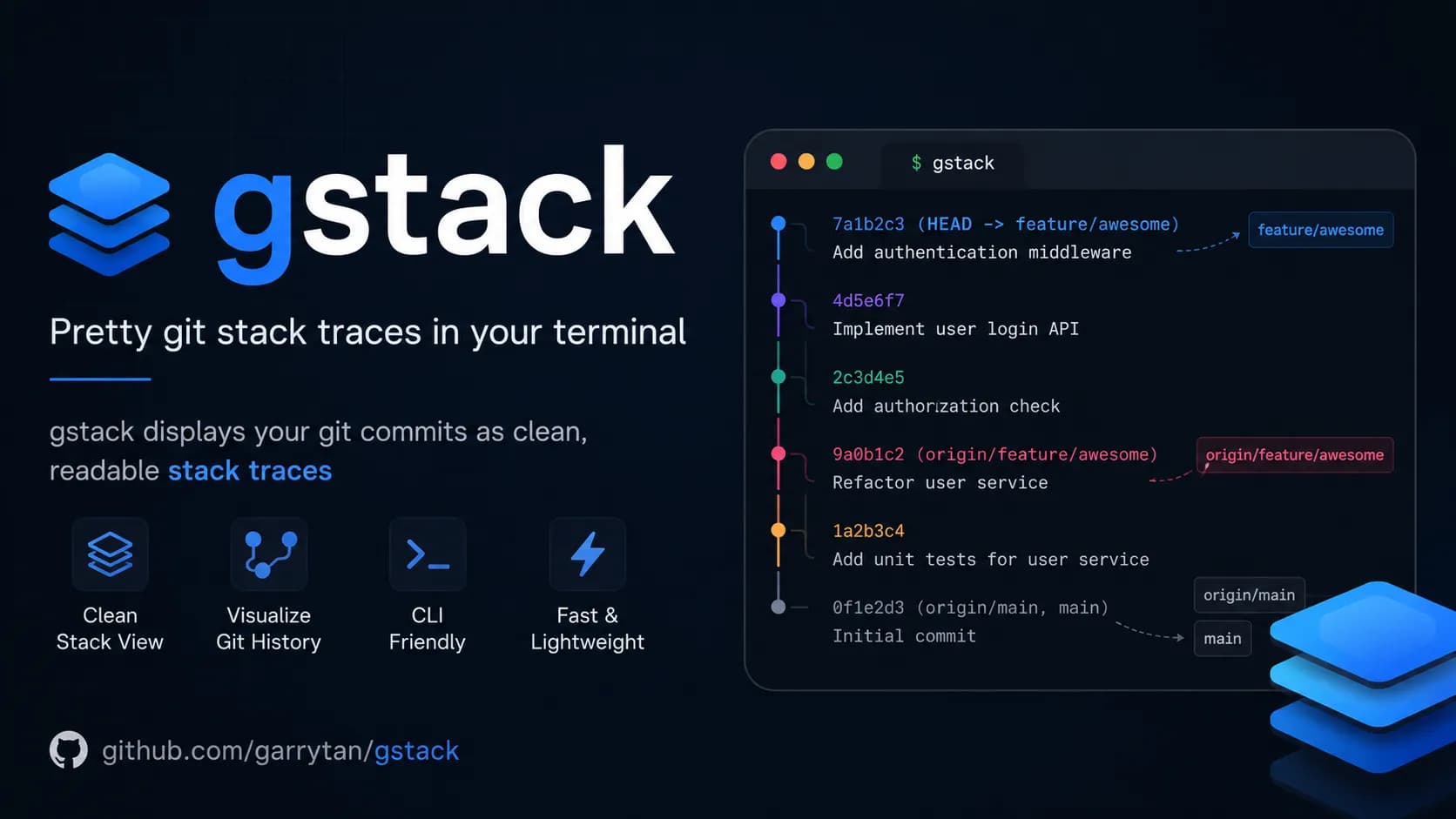
I'd heard a lot about the gstack repo from the CEO of Y Combinator, so I got curious and installed it to try. What surprised me most wasn't the polished workflows — it was the genuinely different mindset behind them. That mindset shows up in the very first command: /office-hours, with six questions that don't ask about code at all, only the things most people haven't thought through before they start building. What is gstack and why did Garry Tan build it gstack is an open-source toolkit by Garry Tan, CEO of Y Combinator, built primarily for Claude Code. The core idea: instead of using AI as a plain code writer, Garry Tan wanted to turn Claude into a small AI agent team, where each member handles a different role — from product direction and security review to testing and release. The entire workflow runs in an ordered loop: Think → Plan → Build → Review → Test → Ship → Reflect. More specifically, gstack splits Claude Code into 23 specialized roles, and the output of each step is automatically passed to the next — no manual handoff needed. Some of the standout commands: /office-hours 6 questions that force you to rethink your feature before writing a single line of code /plan-ceo-review checks whether you're overbuilding or underbuilding relative to what's actually needed /review catches serious bugs that standard automated checks miss /qa opens a real browser, performs real interactions, finds real bugs /cso runs an automated security audit against international standards /ship syncs, tests, pushes code and opens a pull request in a single command How effective is gstack? Garry Tan says his working speed in 2026 is roughly 810 times faster than in 2013, measured by lines of completed code per day (11,417 vs 14). In 60 days, he shipped 3 production services and over 40 features — all while running Y Combinator full-time. Andrej Karpathy, co-founder of OpenAI, confirmed a similar trend, sharing that he hasn't typed a single line of code himself since December 2025 thanks to AI agents. But among all those commands, /office-hours stands out for the opposite reason from the rest, it doesn't help you work faster and it helps you avoid building the wrong thing from the start. Why Garry Tan puts /office-hours first Garry Tan placed /office-hours at the top of the workflow based on a simple observation: most products fail not because of poor code, but because they build the wrong thing. Teams spend weeks on a feature nobody needs, or build the right feature for the wrong audience, or solve a problem users already handle better another way. The command has two modes: Startup mode for founders and people building real products with real users, and Builder mode for side projects, hackathons, and open source. This article focuses on Startup mode, where the 6 questions are most directly applicable. 6 questions that stop you from building the wrong thing These aren't 6 questions to answer quickly and move on. They're designed to make you think honestly, because the more truthful your answers, the more accurately Claude can match what you actually need — saving you a significant amount of time later. You can read the full original prompts at office-hours/SKILL.md.tmpl. Demand reality: Is there a real need? Original question: "Who specifically has this problem? How are they solving it today?" Not "users in general" or "the marketing team" — the goal is to name one real person, ideally by name, who is actively struggling with a specific problem. If you can't name someone like that, you don't yet understand what they actually need. Concrete example: Instead of "users want better task management," it should be: "Minh, a project manager at a 20-person company, copy-pastes between Notion and Google Sheets every Monday morning because the two tools don't sync." Apply this to your own situation accordingly. Status quo: What are they using instead? Original question: "What is their current workaround? How much better do you need to be for them to switch?" Everyone is already solving their problem somehow — whether with Excel, sticky notes, or a WhatsApp group. If their current solution is good enough, they have no reason to migrate their data and learn an entirely new platform. Your solution needs to be meaningfully better before they'll even consider switching. Desperate specificity: Who needs this badly enough? Original question: "Who needs a solution badly enough to use your ugly beta version today?" This is the question that separates nice-to-have from must-have. If you can't find anyone willing to use an incomplete, rough, buggy version right now, the problem you're solving isn't urgent enough. Real early users are people who need a solution badly enough to tolerate an unpolished product — as long as it's moving in the right direction. Narrowest wedge: What is the smallest possible piece? Original question: "What is the smallest thing you could launch tomorrow? Not the full vision — the smallest piece." Not the first full-featured version — something even smaller than that. This question typically cuts 80% of the scope people add because they think "might as well do it while I'm here." It's a trap many builders fall into, including myself. Launch the smallest meaningful piece first, listen to real users, then decide whether to expand. Common mistake: Many people confuse "smallest piece" with "first full-featured version." The narrowest wedge truly means one small thing that solves one specific problem for one specific group of users — nothing more. Observation and surprise: Have you watched real people use it? Original question: "Have you watched real people use your product? Did they use it in ways you didn't expect?" This question is best saved for the second iteration onward, once you have something to test. Rather than asking for feedback through messages or surveys, sit and watch directly — or review screen recordings. The most valuable insights usually don't come from what users say, but from what they do that you didn't design for, or what they skip that you thought was important. Note: If you're in your first iteration and don't have a product yet, you can skip this question and come back after launching the smallest piece in step 4. Future-fit: The 2 to 3 year view Original question: "In 2-3 years, will what you're building still be relevant — or is the trend moving against you?" This isn't about predicting the future precisely. It's about avoiding building something that's already fading. If the trend is making your problem less urgent over the next two years, that's a clear signal to reconsider from the start. That said, if your goal is to move fast and capture the market before big tech ships something similar, this question can reasonably be set aside. A real example: a simple idea completely flipped In the gstack documentation, Garry Tan walks through a practical example. You open /office-hours and say: "I want to build an app that summarizes my daily work calendar." Claude doesn't agree and start executing. Instead, it pushes back: what you just described isn't a calendar summary app — it's actually a full personal AI chief of staff. These are entirely different in scope, technical complexity, and user expectations. From that single opening description, /office-hours helps you see: 5 features you were describing without realizing it 4 assumptions that need to be validated before building 3 different implementation directions with varying levels of complexity 1 recommendation: launch the smallest piece first, treat the rest as a long-term roadmap All of this happens before you write a single line of code. The output is saved as a document that subsequent steps in the workflow automatically pick up and continue from. These 6 questions work even without gstack The 6 questions from /office-hours don't require Claude Code or a gstack installation. They're a way of thinking — the same framework YC partners use to evaluate startups — and you can apply them right now with any AI tool you already have. The difference when using them through gstack is that Claude won't let you give vague answers. It pushes for specifics and won't move forward until your response is grounded enough to be useful. That's why /office-hours tends to be the most uncomfortable command in the entire toolkit — not because it's difficult to use, but because it asks exactly what you've been avoiding. Try it today: Before starting your next project, paste these 6 questions into Claude, Gemini, or ChatGPT along with your idea. Ask it to go through each question one at a time and not let you skip any. The results are often more surprising than you'd expect — even for ideas you've already thought through carefully. gstack currently has over 117k stars on GitHub and is still growing. For me, the most valuable part isn't the technical commands like /review or /ship — it's /office-hours, because it's the only command in the entire toolkit that forces you to stop and think before doing anything else.

Nam•
27 Jun, 2026
How to control Codex from your phone with ChatGPT app

You're out and suddenly remember a small detail in your project that needs fixing — you don't have to open your laptop or remote desktop in. With the right connection set up, ChatGPT app on your phone can become a control panel for Codex, while your computer at home or the office keeps running the actual code. ChatGPT app doesn't run Codex on your phone The easiest thing to misunderstand is thinking Codex is running directly on your phone. In reality, your phone only sends prompts, replies, approvals and follow-up messages, while the actual working environment lives on your Mac or Windows machine running Codex. In other words, ChatGPT app is the remote controller, and the host machine is where your repo, terminal, credentials, plugins, MCP servers and other tools actually live. This makes complete sense because codebases typically live on your development machine, not your phone. When you send a request like fixing a TypeScript error, running tests or checking a diff, Codex processes it inside the selected project on the host and sends results back for you to review. If you want to understand the foundation before using remote access, check out What is Codex and how to use Codex to get a clear picture of where this tool fits in your workflow. What do you need before connecting ChatGPT app to Codex? According to the latest Codex documentation from OpenAI, ChatGPT app supports controlling Codex on both macOS and Windows, though Linux is not supported yet. Notably, this feature works with all ChatGPT account types, including Free and Go — no paid plan required. You only need to make sure you're signed into the same account or workspace on both devices: ChatGPT mobile (latest version on iOS or Android) and Codex (latest version on your host machine, online and running). Your host machine must stay on and Codex must keep running for the entire time you're controlling it remotely. If the machine goes to sleep, loses its connection or Codex is closed, the connection from your phone drops immediately and any tasks in progress may be interrupted. What's worth noting is that the entire setup process starts from Codex App on the host machine and is surprisingly simple — just scan a QR code and you're done. Inside Codex App, select the mobile setup option in the sidebar, scan the QR code with your phone, then complete the confirmation in ChatGPT app. For enterprise workspaces, an admin may need to enable Remote Control permissions before you can connect. This QR code grants control over your computer, so keep it private and never share it with anyone to avoid unauthorized access to your machine. To summarize, connecting ChatGPT app to Codex is straightforward: Host machine must be online and running Codex ChatGPT app and Codex must be signed into the same account or workspace Generate the QR code in Codex on the host and complete setup on your phone MFA, SSO or passkey requirements may still apply depending on your workspace What can you do once connected? Once the host appears in Codex on your phone, you can start a new thread inside a project on the host or pick up an existing one. This is where the experience becomes genuinely useful: you can send follow-ups, answer Codex's questions, approve commands, view output, check diffs, review test results and even receive notifications when a task finishes or needs your attention. A real example: you're at a coffee shop and remember the login form has a validation bug. You open ChatGPT app, select the connected host, and ask Codex to check the auth flow, fix the email validation error and run the related tests. Codex works directly on the repo sitting on your host machine, while you review the results, approve actions when needed and decide whether to request further changes. This is also why people are starting to think of Codex and other AI-powered IDEs as a colleague working inside a real environment, not just a code suggestion tool anymore. Its strength lies in reading files, running commands, editing code and maintaining context across multiple rounds of back-and-forth. Limitations to keep in mind when using Codex from your phone Remote control depends entirely on the host machine — if your computer goes to sleep, loses its connection, closes Codex or gets signed out of the workspace, your phone loses its working environment immediately. That said, if Codex is mid-task when the connection drops, it will continue running on the host and notify you once your phone reconnects, so there's less to worry about if your phone suddenly loses signal during a running task. One more thing to note: on Windows, tasks using Computer Use require an appropriate foreground session, so this setup is not a complete replacement for sitting directly in front of your machine. It also helps to draw a clear line between handing off a focused task and reviewing large changes. Your phone works well for small bugs, running tests, quick questions about a specific file, reviewing short tasks or checking task status. However, anything requiring a high level of attention should still be reviewed on a larger screen to avoid missing details. How to use it effectively in practice The most effective approach is to hand off tasks with a clear scope and specific expected outcomes. Instead of saying "fix the login", describe exactly where the error occurs, what the expected behavior should be after the fix, which tests to run and which parts of the codebase to leave untouched. Codex performs better when it knows the boundaries of a task, especially since remote mobile means each feedback loop takes longer than when you're sitting right at your machine. A clean working rhythm might look like this: describe the task in detail whether small or medium-sized, ask Codex to read the relevant files, let it propose a solution, only approve when necessary and wait for the result report. Once you get used to this rhythm, you'll find that idle time outside can handle real work — while keeping the final decision firmly in your hands. Compared to Claude Code Remote and Telegram bot There are many ways to control an AI coding agent from your phone, though the three most common approaches each serve a different need. Criteria ChatGPT app + Codex Claude Code Remote Telegram + Codex Natural conversation ✅ Excellent ✅ Good ❌ Requires exact syntax Granular control Moderate Highest Low Connection stability Stable Stable Frequent drops Mobile UI Well optimized Not fully optimized Uses existing Telegram app Initial setup Easy, scan QR Easy Requires manual bot configuration Computer must stay on ✅ Required ✅ Required ✅ Required Claude Code Remote Control offers the strongest level of control — you get direct terminal output, can intervene mid-task and generally feel much closer to what the agent is doing. That said, the UI on small phone screens isn't fully optimized yet, and some interactions are still difficult to perform without a physical keyboard. Telegram bot has the advantage of not requiring a separate app and is easy to get started with, but the real-world experience has clear limits: it's prone to slowdowns, occasional silent disconnections mid-task, and because it lacks genuine AI context, anything slightly more complex than a simple command quickly falls apart — forcing you to type precise instructions rather than describe what you need naturally. ChatGPT app + Codex sits at the best balance point for most users — smooth enough, smart enough, quick to set up with a QR scan and no new syntax to learn before you can get to work. Connecting ChatGPT app to Codex doesn't turn your phone into a development machine — it turns your phone into a control surface for a development machine that's already ready to work. As long as the host stays on, permissions are configured correctly and the task is scoped tightly enough, this is the most practical way to handle real coding work when you're away from your laptop.

Nam•
22 Jun, 2026