4AIVN
Back to News

Gemini is now built directly into Chrome

Published on 22 April, 2026
Gemini is now built directly into Chrome

Quick Summary

Google has officially integrated Gemini deeply into the Chrome browser, letting users summarize content, compare products across tabs, and get work done without switching windows or installing anything extra.

After a long wait, Google has finally integrated Gemini directly into the Chrome browser and no extension required. One click on the Gemini icon in the toolbar gives you an AI assistant that understands the context of whatever page you're reading, and that's genuinely good news for anyone who spends most of their day browsing in Chrome.

What is Gemini in Chrome and how is it different from a regular extension?

Until now, using AI while browsing meant installing a third-party extension like Monica, Sider, or MaxAI. These extensions work by capturing page content and sending it to their own servers — which creates two problems: latency, and a security risk since your data passes through an intermediary that isn't Google or the browser itself.

Gemini in Chrome works differently because it's integrated at the browser level, not the extension layer. That means Gemini reads page content directly without copying it through a third party, and it understands the context of up to 10 tabs you have open at the same time.

What can Gemini in Chrome actually do?

Summarize and answer questions about the page you're reading

This is the most straightforward feature and the one that gets used most often. If you're reading a long article or a technical document, just ask "Summarize this for me" or "What are the key takeaways?" and Gemini answers immediately based on the page content — no copying and pasting required.
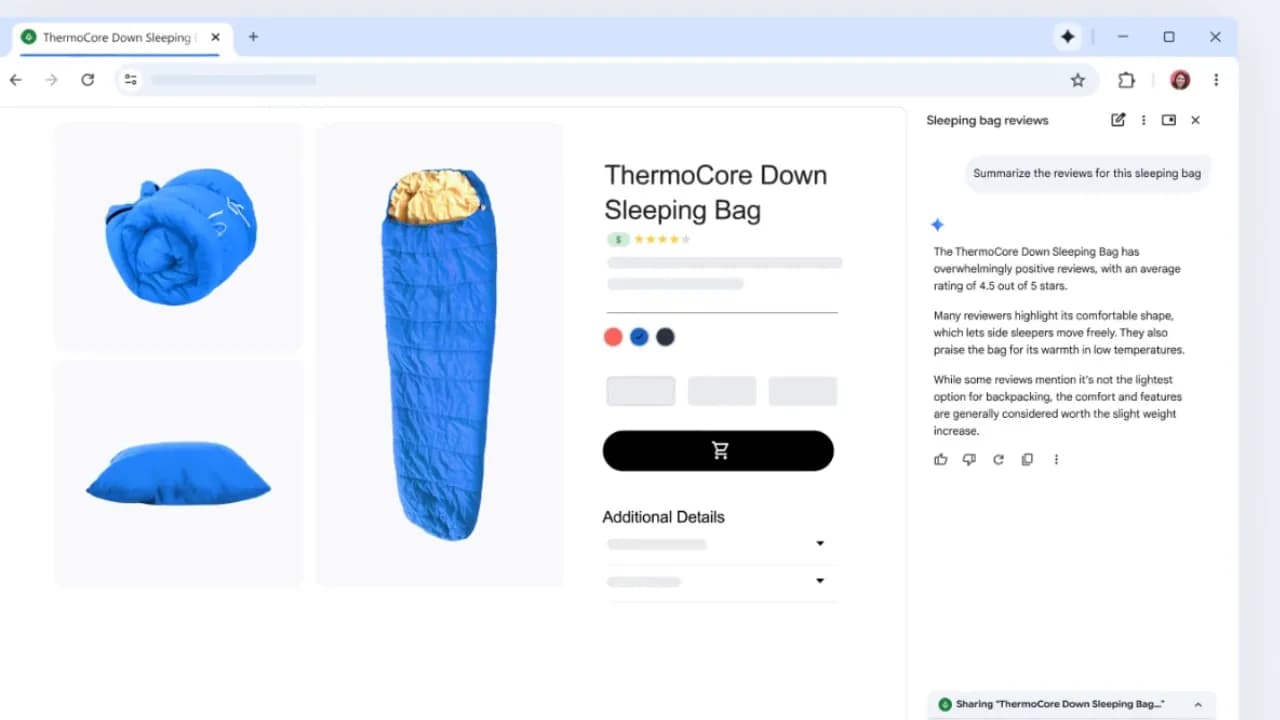
Gemini in Chrome summarization feature (source: Google)

The advantage over using ChatGPT or the Gemini web interface is that you don't need to copy text and open a separate tab. Everything happens in a side panel on the right while you continue reading the page.

Compare information across multiple tabs

This feature doesn't get talked about much but is genuinely useful in practice. If you're comparing five products with one tab open per product, Gemini can read all five tabs and produce a comparison table for you — no manual note-taking, no new spreadsheet needed. You can even export the result directly to Google Sheets if you need it.

Integration with Gmail, Google Calendar, and YouTube

This is the feature that might actually bring people back to Chrome. Gemini in Chrome doesn't just read regular web pages — it integrates deeply with Google's own services. When you're in Gmail, you can ask "Find emails about my upcoming meeting" and Gemini searches your inbox, checks your calendar, and drafts a notification email for you, with everything flowing into Google Calendar — all in one continuous interaction without switching tabs.

On YouTube, Gemini can summarize the video you're watching without needing captions or watching it through to the end.

Auto browse and letting Gemini work on your behalf

This is the most powerful feature, though it's currently only available to Google AI Pro and Ultra users in the US. Auto browse lets Gemini complete multi-step tasks for you — booking appointments, planning a content schedule, and similar workflows. Gemini will still pause and ask for confirmation before sensitive actions like payments or publishing, so you stay in control throughout.

Compared to Copilot in Edge

This is the question anyone who switched to Microsoft Edge will naturally ask. Copilot is also built into Edge through a similar mechanism — but in practice, the experience with Copilot in Edge has left a lot to be desired.

  • Ecosystem integration: If you're already using Google's full ecosystem — Gmail, Google Calendar, Google Drive — Gemini has a clear advantage because it understands those services at a deeper level. Copilot has the edge if you're in Microsoft 365, but for most people that's not the primary setup.
  • Real-world experience: Copilot in Edge has been around since 2023, and a common complaint is that it frequently pushes Bing search results — and Bing simply doesn't compare to Google Search in terms of quality.
  • Accuracy issues: Copilot's summarization in Edge tends to be shallow and still produces errors regularly — it reads more like a rough draft than a reliable output. Whether Gemini performs meaningfully better is still a fair question that will take more real-world use to answer properly.

What to know before you start using it

Gemini in Chrome requires access to your tab content in order to function, which means Google processes the content of the pages you're viewing. This is a trade-off worth thinking about — if you regularly work with internal documents, sensitive information, or customer data, you'll want to be more careful about what you let Gemini read and how much you rely on its output without verifying it.

Gemini in Chrome is rolling out gradually by region and requires the latest version of Chrome on Windows, macOS, or Chromebook Plus. On mobile, Android supports it through the power button, while iOS has it integrated directly into the Chrome app.

For personal users already in the Google ecosystem, this is an update worth trying today. Instead of opening a separate Gemini tab or relying on a third-party extension, you now have an AI assistant built into Chrome itself — and that's enough to make switching back to Chrome from other browsers a genuinely reasonable consideration.
Discussion (0)

Log in to join the discussion.

No comments yet. Be the first!

Related Articles

Claude Code, NotebookLM, and Obsidian for Smarter Research

Many people still do research manually: opening a dozen tabs, watching videos, reading articles, taking notes in scattered places, and then spending even more time trying to synthesize the result. A long-form post by monokern on X suggests a different pattern: use Claude Code to orchestrate the workflow, NotebookLM to analyze sources, and Obsidian to store long-term memory. Done correctly, this is not just a search session. It becomes an AI workflow that compounds over time. The core idea is practical: Claude Code does not need to do everything inside an expensive context window. It can call tools, run skills, create files, and offload heavy source processing to NotebookLM. The output is then saved back into Obsidian as markdown, giving the next research session better context. According to the original post, the initial setup can be completed in under 30 minutes if the required tools are already available. Why does this stack work? The strength of the workflow is that each tool owns a clear layer. Claude Code acts as the execution engine: it receives plain-language instructions, calls skills, runs commands, manages files, and coordinates the pipeline. Instead of forcing the user to operate each step manually, Claude Code becomes the system operator. NotebookLM is the analysis layer. Google's research tool can read sources, summarize them, generate analysis, flashcards, mindmaps, infographics, or audio overviews. When Claude Code sends source processing to NotebookLM, the user benefits from Google's processing layer rather than spending Claude tokens on every piece of long-form digestion. Obsidian is the memory layer. Every analysis result is saved as markdown in a personal vault. Over time, that vault becomes a structured knowledge base of topics, sources, observations, patterns, and conclusions. Claude Code can read those files later to understand what the user cares about, what formats they prefer, and how they tend to evaluate a topic. Skill Creator turns the workflow into a reusable tool The first major step in the guide is installing Skill Creator inside Claude Code. This layer lets users describe a new capability in natural language, after which Claude Code creates the skill structure, installs it, and makes it available as a reusable command. In other words, instead of rebuilding the research prompt every time, the user packages the workflow as a dedicated skill. The first example is a YouTube search skill. It uses yt-dlp to search videos by query and return metadata such as title, channel, views, duration, upload date, URL, and a views-to-subscribers ratio. For content or market research, this is more useful than a plain list of links because it shows which sources are actually attracting attention. NotebookLM handles the heavy analysis The post proposes connecting Claude Code to NotebookLM through notebooklm-py because NotebookLM does not currently provide an official public API. After installation and Google account authentication, Claude Code can use a custom skill to create a new notebook, add sources such as YouTube URLs, text, or files, and then ask NotebookLM to generate analysis or deliverables. The key point is that NotebookLM is not only a summarizer. In a real research pipeline, it can receive 10 videos on a topic, analyze which frameworks are gaining traction, which ones are overhyped, where the community disagrees, and what content gaps remain uncovered. That processing takes time, but most of the work happens on the NotebookLM side. The full pipeline: one command for a complete research task Once the YouTube search skill and NotebookLM skill exist, the next step is to create a pipeline skill that combines both. The user gives a topic, such as researching AI agent frameworks in 2026, and the pipeline searches for relevant sources, creates a notebook, adds those sources, runs the analysis, and returns the result as markdown. In monokern's example, the pipeline finds 10 video sources, sends them into NotebookLM, generates analysis, creates an infographic, and saves the result into Obsidian. The total processing time is described as around 6 minutes, most of which is NotebookLM processing. The practical value is that the user does not need to open every tab, copy every link, or manually combine the metadata. The final output is more than a chat answer. It includes full analysis, source lists, engagement metrics, trend observations, a visual deliverable, and a markdown file saved into the vault. That is what separates this workflow from a normal chatbot interaction. Obsidian makes the system smarter over time Obsidian is the most interesting part. If the workflow runs only once, it already saves time. But if it runs regularly, every new markdown file makes the personal knowledge base richer. After a month, Claude Code can see recurring topics, the types of insights the user values, and the preferred format for results. The post also highlights the role of the claude.md file inside the vault. This can become a configuration file describing working conventions, analysis style, and output preferences. After several research sessions, the user can ask Claude Code to read recent work and update that file so it better reflects the user's current process. The real value is the structure, not YouTube YouTube is only the data source in the example. The pipeline structure is the valuable part. Users can replace YouTube with academic PDFs, industry reports, public documentation, web pages, local files, transcripts, or Google Drive documents. As long as Claude Code can access the source and pass it into the analysis layer, the operational template stays the same. This opens many practical uses: researching a crypto ecosystem through whitepapers and public documentation, analyzing an emerging technology through conference talks, mapping content gaps in a niche, or tracking market dynamics from public reports. In every case, the same three layers remain: collect sources, analyze them, and store knowledge. What should you watch out for? This workflow is powerful, but it is not for everyone. It assumes the user is comfortable with Claude Code, has an Obsidian vault, can install CLI tools such as yt-dlp, and is willing to use an unofficial library to connect to NotebookLM. Also, because NotebookLM and YouTube can change access patterns, these skills should be treated as maintained tools rather than install-and-forget automation. Still, the underlying idea is important: instead of using AI as a disconnected chat box, turn it into a research system with memory, a pipeline, and the ability to learn from your own work history. For people who regularly analyze markets, technology, or content, this is far more practical than opening 10 tabs and manually stitching everything together.

Nam
2 Jun, 2026
What is an agent harness? The framework that helps AI work efficiently

Imagine having an AI assistant that is incredibly smart but forgets everything between sessions and cannot check the quality of its own work. To solve this problem, developers created a protective management layer around AI models called an agent harness. This is what enables AI agents to complete complex, multi-step tasks autonomously without requiring constant human intervention. What is an agent harness? Think of an AI model as a brilliant new employee with no long-term memory and zero familiarity with the workplace. They can solve complex problems in seconds but will just as easily forget what they were working on, or accidentally send a confidential document to the wrong client. In that scenario, an agent harness acts as the experienced manager sitting right beside them, keeping things on track. Put simply, an agent harness is the software layer wrapping around an AI model that handles all administrative and logistical work so the model itself can focus entirely on reasoning and problem-solving. It connects the AI to external tools, maintains a complete record of work across sessions, and verifies results before considering a task done. In practice, an agent harness handles the following: Connecting the AI model to external tools such as web search, email, and calendars Persisting progress across sessions so the AI never has to start from scratch Filtering out irrelevant information and supplying only the data the AI actually needs at each step Monitoring AI actions to prevent dangerous mistakes Logging activity in detail so humans can audit what happened when needed Origin of the term: The concept of "agent harness" was formally named by technology engineer Mitchell Hashimoto in early 2026. Before that, many development teams had built similar systems but had no shared term for this layer of infrastructure. Why do AI agents fail at long-running tasks? The biggest weakness in today's AI models is the complete absence of long-term memory. Every new conversation starts from zero with no recollection of anything that happened before. Imagine hiring an employee who wakes up every morning having forgotten every agreement, every deadline, and every piece of progress from the day before. When Anthropic tested Claude building a complex web application without harness support, the results were consistently disappointing. Two failure modes kept appearing: The AI tried to do everything at once, ran out of working memory midway through, and left the project unfinished. The next session wasted time trying to figure out what had already been done. The AI declared the task complete without actually running the result to verify it worked. Beyond those two core failures, long-horizon tasks expose three additional problems: Context clog: Accumulated conversation history and tool outputs crowd out the original instructions, causing the AI to gradually lose focus on the actual goal Tool misuse: The AI sometimes searches for information that does not exist or submits incorrect inputs to forms, and without anything to stop it, repeats the same error in a loop Total progress loss on failure: Any network error or system crash wipes out whatever was stored in temporary memory, forcing a full restart Stanford research (2023): AI models tend to overlook information buried in the middle of long text, even when that text is not particularly long. This is why feeding too much data to an AI all at once often backfires without a filtering layer in place. How does an agent harness work in practice? An agent harness operates in two distinct phases to keep work flowing continuously without interruption. Setup phase (runs once) The harness prepares the full working environment before the AI begins: building a structured task list, initializing storage, and recording the starting point. Think of it as the manager drawing up a detailed project plan before handing anything off. This phase only needs to happen once. Execution phase (repeats) Each time the AI begins a new session, the harness automatically reloads all saved progress and assigns only the next relevant task. When the AI wants to take an action such as searching for information or sending a notification, the harness checks whether that request is valid, executes it safely, cleans the returned result, and passes it back to the AI. The model never touches external systems directly without going through this control layer first. The four core components of an agent harness For an AI to operate reliably over extended periods, a standard agent harness needs four essential components: External tool gateway: Allows the AI to interact with the real world by reading documents, searching the web, or sending messages. The harness acts as an intermediary, validating every request before execution and ensuring returned results are clean and usable. Layered memory management: Maintains three types of memory serving different needs: short-term working memory for the current session, a task log recording what has been completed and what remains, and a long-term knowledge store that accumulates across multiple projects over time. Intelligent context filter: Summarizes long conversation histories down to key points and supplies only the data relevant to the current step rather than loading everything at once, keeping the AI focused on the right task at the right moment. Safety checker and human approval gate: Automatically verifies results before marking a task as complete. For sensitive actions such as deleting important data or sending bulk emails, the harness pauses and waits for human confirmation before proceeding. Note on accumulated knowledge: If an AI agent's memory is stored entirely within a closed third-party platform, all the knowledge it builds up over time belongs to that platform. Switching to a different system means starting from zero. This is worth thinking through carefully when choosing a long-term AI agent solution. Harness engineering and the secret behind millions of lines of code Harness engineering is the practice of treating every AI failure as a system problem to fix permanently rather than something to retry or ignore. As Mitchell Hashimoto put it: if the agent makes a mistake, redesign the environment so that mistake becomes physically impossible to repeat. In practice, when OpenAI built large software projects with three engineers producing 3.5 pull requests each per day without typing a single line of code, they had set up automatic verification checks after every AI action. When the AI produced something incorrect, the system returned error messages written in a specific structure so the AI immediately understood what needed to change on the next attempt. Every error message became a learning signal, not just a warning. A study presented at ICML 2025 further confirmed that the same AI model equipped with a harness consistently outperformed itself running without one, even with identical training weights and identical prompts. The environment surrounding the AI matters just as much as the model itself. A telling data point: Anthropic's Claude Code has grown past 512,000 lines of code and continues to expand. More capable models do not make the harness simpler. They make it larger, because there is more capability to orchestrate and more failure modes to guard against. When do you actually need an agent harness? For simple one-off tasks like summarizing a document or answering a specific question, calling an AI directly is perfectly fine. But the moment work extends beyond a single conversation, requires memory from a previous session, or involves multiple steps that need to happen in a specific order, a harness becomes necessary. One thing worth reflecting on: the built-in web search in ChatGPT and Gemini is itself a form of harness. When AI automatically looks something up, there is infrastructure behind the scenes making the tool call, processing the result, and feeding clean information back into context. The harness is invisible to the user but indispensable to the system. Agent harness is not a short-term technical trend. It is the answer to fundamental limitations that AI cannot resolve on its own: no long-term memory, finite working context, and a tendency to misuse external tools without guardrails. 4AIVN has also started applying harness to our own workflows — and what we have found is that it does not just help AI finish tasks. It turns AI into a system that learns from failure and gets more reliable over time.

Nam
1 Jun, 2026
Claude Opus 4.8 launches: what is new in Anthropic's strongest model?

Anthropic has introduced Claude Opus 4.8, a release the company describes as its strongest generally available model. The update is not only about stronger reasoning for complex work; it also adds practical changes for developers building AI agent, coding assistants, and long-running automation workflows. The important point is that Claude Opus 4.8 is not just a renamed Opus 4.7. Anthropic is focusing on three practical areas: more stable long-context handling, more reliable tool use, and better cost control in agent loops. With the model ID claude-opus-4-8, it is already available for Claude API and supported cloud platforms. What is Claude Opus 4.8? Claude Opus 4.8 is targets multi-step reasoning, long-running agentic coding, and work that requires a higher level of autonomy. According to Anthropic's documentation, the model supports a default 1 million token context window on Claude API, Amazon Bedrock, and Google Vertex AI, while Microsoft Foundry supports 200,000 tokens. The model also supports up to 128,000 output tokens, adaptive thinking, and the same core tool capabilities as Claude Opus 4.7. This means teams already using Opus 4.7 can likely test the upgrade with limited changes, but they should still review behavior shifts and API constraints before moving production traffic. Key new features Claude Opus 4.8 introduces several updates that directly affect prompt design, long conversation management, and API cost optimization. These are especially relevant if you run deep chatbots, coding assistants, or multi-step agents. System messages during a conversation One major change is support for adding a message with role: "system" after a user turn in the messages array, as long as Anthropic's placement rules are followed. This lets developers update instructions during a long conversation without resending the entire original system prompt. In practice, this is useful for agents that run through many steps. Instead of breaking prompt cache efficiency by repeating a large instruction block, an application can add new instructions at the right moment, preserve cache for prior conversation context, and reduce input cost across long workflows. Fast mode for Claude API Anthropic is also bringing fast mode to Claude Opus 4.8 as a research preview on Claude API. By setting speed: "fast", users can receive higher output token throughput, with Anthropic describing speedups of up to 2.5 times under supported conditions. Fast mode is especially useful for products that need lower latency while staying on the same powerful Opus model. However, the documentation also notes that this mode carries premium pricing, so engineering teams should reserve it for high-value paths or workflows where response speed clearly matters. Prompt caching becomes easier to use With Claude Opus 4.8, the minimum prompt size for caching drops to 1,024 tokens. This small change has a practical impact: many prompts that were previously too short to create a cache entry on Opus 4.7 can now be cached without code changes. For products with stable system prompts, long internal documentation, or repeated API calls, prompt caching can reduce cost significantly. Combined with mid-conversation system messages, Claude Opus 4.8 is better suited for agents that need to preserve state across many steps. Documented refusal stop details Anthropic has also documented the stop_details object for refusal responses. When the model cannot complete a request, the application can receive not only a refusal stop reason but also more structured information about why the refusal happened. This helps products handle the user experience more gracefully. Instead of showing a generic error, an application can distinguish different refusal categories and guide users toward a more appropriate next step. API constraints to watch Although Anthropic says these constraints carry over from Claude Opus 4.7 and are not breaking changes for code that already works with the previous model, developers should still check them carefully. On the Messages API, Claude Opus 4.8 does not support non-default values for temperature, top_p, or top_k. Passing these sampling parameters will return a 400 error. Another point is that adaptive thinking is the only supported thinking mode. Older configuration patterns that set a fixed thinking token budget are no longer the right approach for Opus 4.8. Anthropic recommends using thinking: {"type": "adaptive"} and controlling reasoning depth through the effort parameter. On Claude Opus 4.8, the default effort is high across all surfaces, including Claude API and Claude Code. If an application already sets effort explicitly, the current configuration remains in place; if not, the default behavior may differ from prior expectations and should be tested. Why it matters for coding agents and long workflows Anthropic says Claude Opus 4.8 targets improvements in long-running coding agents, including better long-context handling, less frequent compaction, and stronger recovery after compaction. These are hard problems for large models: after many rounds of reading files, editing code, running tests, and summarizing state, agents can lose focus or miss important details. The new model is also optimized to trigger tools at the right time more reliably. For systems that need to call search, databases, terminals, browsers, or internal APIs, fewer missed tool calls can make a large difference in reliability. This matters more than a single benchmark score because real agent quality depends heavily on knowing when to use the right tool. Should you upgrade to Claude Opus 4.8? If you already use Claude Opus 4.7 for complex reasoning, programming, or autonomous agents, Opus 4.8 is worth testing early. Changes such as the 1 million token context window, lower prompt caching threshold, and mid-conversation system messages all target real production problems, not only short prompt quality. Still, engineering teams should not upgrade blindly. Review sampling parameters, thinking configuration, default effort expectations, and cost implications if you plan to use fast mode. For products handling sensitive data or critical workflows, run an A/B test on representative tasks before moving all traffic to Claude Opus 4.8. Conclusion Claude Opus 4.8 shows that Anthropic is putting more weight behind the agent and developer market. The improvements are not only about reasoning quality; they also cover operational details such as caching, mid-conversation system messages, output speed, and refusal classification. For teams building serious AI products, this is a release worth watching because it addresses real deployment issues in long-term AI applications.

Nam
29 May, 2026
Create a free mini app with just a few clicks using Google AI Studio

Artificial intelligence (AI) is fundamentally changing how people build applications. You no longer need to be a professional developer. With a smart AI assistant, you can turn any idea into a real product. Google AI Studio is the clearest proof of that shift. The platform lets anyone, even without coding knowledge, build their own app. With the latest update, creating an AI app is as simple as having a natural conversation: describe your idea in plain language, and let AI handle the rest. Google AI Studio: Build AI apps without code and create Android apps with ease Google AI Studio is a browser-based development environment designed to simplify prototyping and building applications on top of Google's powerful AI models. Notably, the platform now supports direct creation of complete Android applications, opening the door for anyone who wants to ship a mobile product without writing a single line of code. If Gemini was once described as the "brain" of an application, Google AI Studio now gives it "hands and feet" through direct connections to APIs and SDKs within Google's ecosystem (via the "Supercharge your apps with AI" section). This makes expanding functionality incredibly easy, and you can make your app behave exactly as intended without manually configuring APIs or SDKs from scratch. Third-party APIs and SDKs still require manual input, but Google's vast ecosystem including Nano Bananas, Veo 3, Text-to-Speech, Google Search, and especially Google Maps covers nearly every common need out of the box. Through personal testing, Google Maps works reliably for mini apps in Vietnam, such as navigation tools or real-time traffic viewers. When pulling data from Google Search, the quality of results is impressive enough to eliminate the need for third-party scraping tools entirely. Another major advantage: Google AI Studio is currently completely free to use. The free credits Google provides are generous enough to comfortably explore Gemini 3, Nano Banana Pro, Veo 3.1, and many other tools for personal use without spending a thing. Step-by-step guide to creating a mini AI app Building an app in Google AI Studio is straightforward. Just follow these steps: Step 1: Access and set up Visit: Go to the Google AI Studio tool page. Sign in: Log in with your Google account. Start building: Open the "Build" tab. Under the Start tab, you can choose an AI model (default is Gemini 3.5 Flash) and select a programming language: React, Angular, or Android. If you skip this, AI defaults to React. Step 2: Come up with an app idea If you don't have a specific idea yet, browse the App Gallery to see sample apps built by Google and the community. It's the fastest way to find inspiration and understand what's possible. If you want something even more hands-off, just click the I'm feeling lucky button in the Start tab. Google AI Studio will instantly suggest interesting ideas, complete with example API and SDK integrations (under the Supercharge your apps with AI section) and the prompts AI uses to build them. It saves time and teaches you how AI thinks when creating apps. If you already have a clear idea, move straight on to the next step. Step 3: Write a specific prompt If you don't have a detailed prompt covering all the functionality, language, and interface requirements like the samples in the I'm feeling lucky button, that's completely fine. You can create an app with just a single sentence, for example: "Create a photo collage app for me." From there, AI will automatically make all the decisions and carry out the remaining steps for you. That said, the more detail you provide, the closer the result will be to your vision, which means less time editing afterward. If possible, include reference images or mockups from tools like Figma or Canva, since AI can understand and recreate interfaces almost exactly from those references. Don't forget to add extras in the Supercharge your apps with AI section to let AI automatically connect the APIs or SDKs you need, or even enable intelligent reasoning mode for your app. Here's an example of a detailed prompt you can reference: "Create an AI Web App that allows users to: Upload 2 images (1 & 2) so the app combines them into 1 composite image. Support multiple aspect ratios: 1:1, 16:9, 4:3, 3:2. Include image preview and a Download button. Save creation history (including result image, prompt, and timestamp)." Once your prompt is ready, just click Build and wait a few seconds to see the result. Step 4: AI automatically handles the build Build process: AI Studio runs through several stages, including: Defining the UI Scope. Developing the React App. Planning the app structure. Integrating Gemini API. Auto fix errors. Preview and edit via conversation: A live preview of your mini app appears directly in the browser, so you can see it in action right away. Developers can edit the code directly in the code panel. But if you're not technical, that's no problem at all. Just chat with AI to add, remove, or adjust features without touching a single line of code. For example, you could say: "Add images 3 and 4 so I can merge four photos into one" or "Switch the interface to dark mode." If you didn't add APIs or SDKs in the "Supercharge your apps with AI" section earlier, don't worry. With a simple prompt, AI will automatically integrate the necessary APIs or SDKs into your mini app quickly and with minimal effort. You can even request advanced features like: Generate video from images using Veo 3, and the app will automatically connect to the Veo API. Add a speech-to-text button to make the app more interactive. And the most exciting part: you can edit your app visually, just like working in Canva or Figma, using the Annotate app button where you can draw, add text, change colors, and more, all in the most intuitive way possible. Step 5: Test and deploy Action How to do it Test in browser Click the "Run" button or view the live preview. Share app via link Click "Share" and copy the link. Download source code Click "Download" (ZIP file containing React + TypeScript code). Deploy to cloud Click "Deploy" and select Google Cloud Run (requires a Google Cloud account). Can you build a complete app with Google AI Studio? For personal use or quick idea testing, Google AI Studio is an excellent choice: easy to use and nearly zero cost. However, if you want to build a full-stack application with a proper backend, UX, and UI without any coding knowledge, you'll want to consider more suitable platforms. Comparison with Google Antigravity IDE While Google Antigravity is an IDE focused on helping professional developers write code faster through asynchronous background agents, Google AI Studio targets non-technical users in the no-code/low-code space. With AI Studio, there's no software to install and no environment to configure. Everything happens through natural language descriptions right in the browser. Antigravity, on the other hand, offers deeper control over source code, multi-model support (Claude, GPT), and is better suited for complex projects that require refactoring an existing codebase. Goal Recommended tool Personal use, rapid prototyping, idea testing Google AI Studio Commercial app development, full-stack products, scalability needs Google Firebase, Lovable, Bolt, Replit, Antigravity Google AI Studio is not the optimal choice for large-scale products or applications requiring high security. Instead, you can download the source code from AI Studio and upload it, or sync it directly via GitHub, to continue building on platforms like Firebase Studio (within the Google ecosystem), Lovable, Replit, Bolt, or Antigravity. These platforms help you complete your app with powerful backend features while still leveraging the AI foundation built in Google AI Studio.

Nam
24 May, 2026