How to connect Antigravity and Stitch through MCP

Quick Summary
Connecting Google Stitch to Antigravity via MCP solves the most persistent problem in the design-to-development pipeline: the gap between what was designed and what actually gets coded. Instead of manually copying hex values and spacing, the agent inside Antigravity reads the design's "DNA" directly from Stitch in real time through MCP, then builds pixel-perfect React components with Tailwind through the Stitch Loop — design, code, visual verification, and self-correction against the original tokens. This article covers the full workflow: generating an API key, configuring MCP, running the loop, and packaging DESIGN.md into a reusable Antigravity Skill for future projects.
Once you know Google Stitch and Antigravity IDE, the natural next step is combining them — so that instead of finishing a design and then manually translating every color, font, and spacing value into code, the agent does it for you. Google has published a workflow for connecting Stitch to Antigravity via MCP that lets the agent read the design's "DNA" and write pixel-perfect React code automatically. This article walks through the entire process, from creating a design to packaging everything into a reusable Skill for future projects.
Why connect Stitch to Antigravity through MCP?
The classic problem in the design-to-development pipeline is the gap between the two sides: a designer produces a polished interface in Figma or Stitch, a developer receives the file and then has to interpret colors, spacing, fonts, and behavior on their own. The result is usually code that looks "close enough" rather than "pixel-perfect."
MCP (Model Context Protocol) closes that gap by letting Antigravity read design metadata directly from Stitch in real time, without any file exports or manual color code copying. The agent doesn't guess at the design — it reads the original tokens directly: exact hex color values, pixel-level spacing, real font names, and component structures exactly as they exist in the project.
Step 1: Create your design in Google Stitch
Before making any connection, you need a design project in Stitch to serve as the source of truth. If you already have a Figma file, you can upload it directly as your Stitch design. We've covered Stitch in detail previously — you can read that here. If you already have a live website or app, you can also use Stitch's redesign feature to work from what exists.
Once Stitch generates the interface, organize it into clearly named sections — homepage, news, products — before moving to Antigravity. Give your project a clear name since this name will be used when calling it through MCP. For example: LaunchPad.
Step 2: Generate an API key and configure MCP in Antigravity
Generate an API key from Stitch
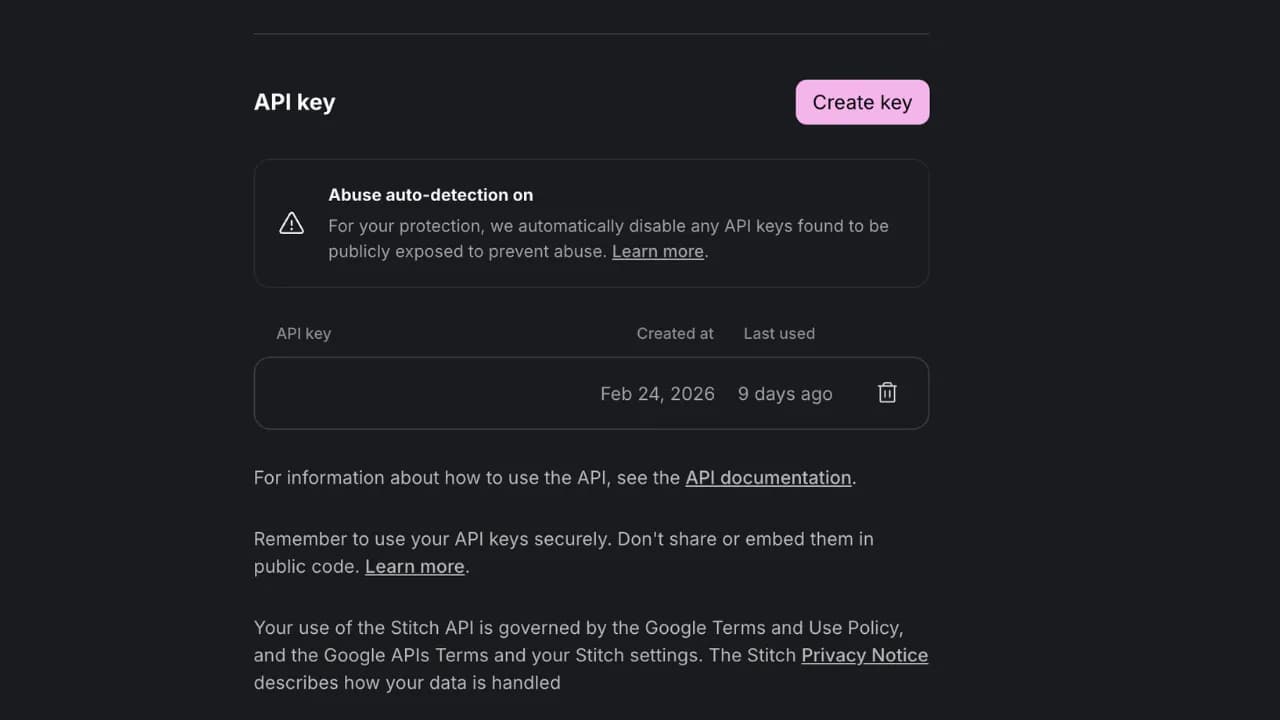
In Stitch, click your profile photo in the top-right corner, select Stitch settings, go to the API key section, and click Create key. Copy the key immediately — it only appears once — and store it somewhere safe.
Connect MCP in Antigravity
Open Antigravity IDE, go to Agent Manager (CMD+E on Mac or CTRL+E on Windows), create a new workspace named something like LaunchPad-Project, and point it to your local project folder. From here you have two options.
The first is to prompt the AI agent directly and let it handle the connection steps on its own: "I have my Stitch API key here [paste key] — connect to Stitch via MCP and verify the connection when done." The agent will work through the steps automatically, and your only job is to sit back and approve any permission requests it needs along the way.
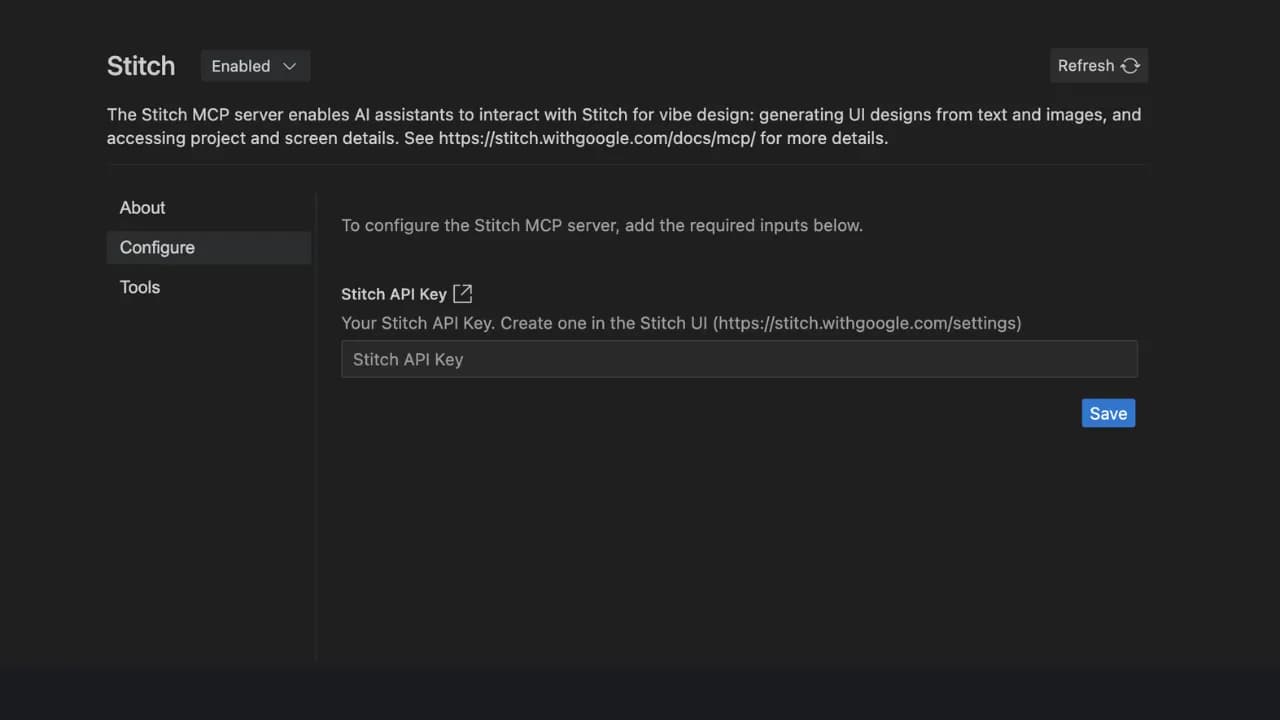
The second option is to do it manually — which sounds more work, but the steps are quick and straightforward. In practice, manual setup is often faster than waiting for the agent in Antigravity, since it tends to require repeated retries between steps. Here's how:
- In Agent Manager, select MCP Servers
- Search for "Stitch" and click Install
- Paste your API key into the configuration field when prompted
- Verify the connection by typing into the chat:
Check that the Stitch projects are connected successfully
If the agent returns the project name LaunchPad, the connection is working.
Step 3: The Stitch Loop — from design to code
This is the core of the workflow and the biggest difference from traditional practice. Google calls it the "Stitch Loop" because it creates a continuous cycle between design and code, rather than a one-way handoff from designer to developer.
Phase 1: Fetch the design context
In an Antigravity conversation, type a prompt to have the agent pull the full design DNA:
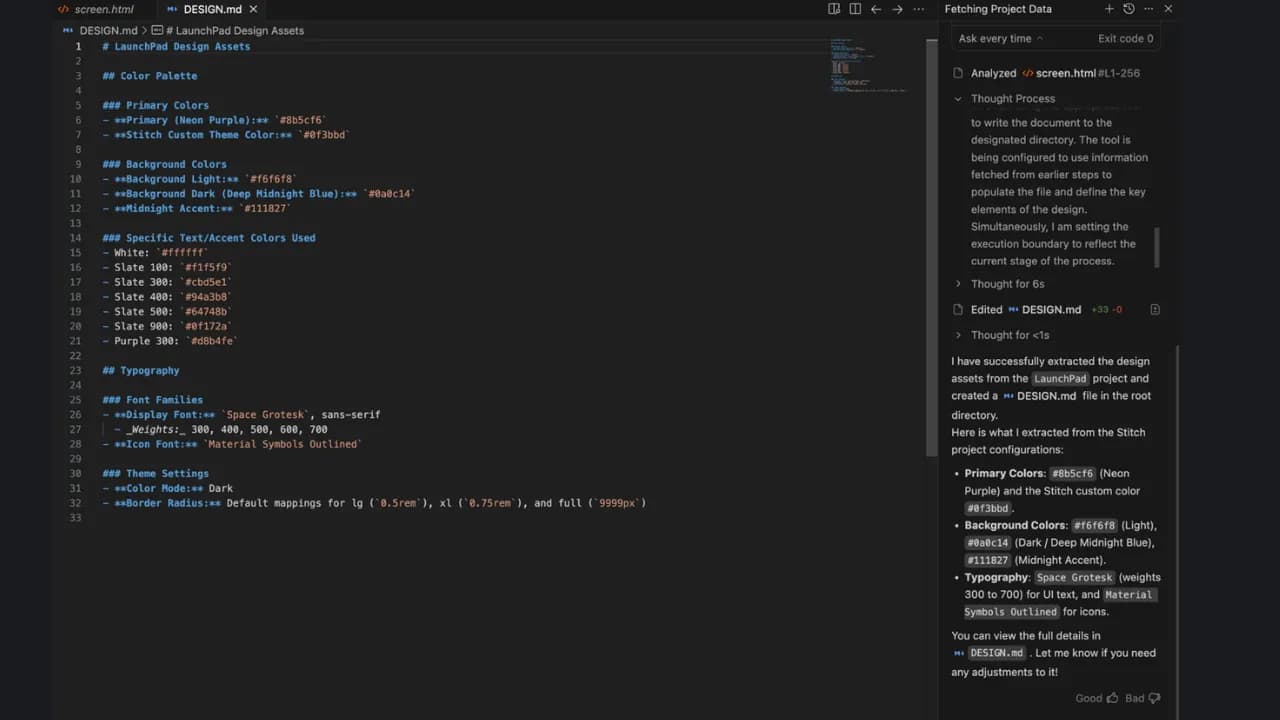
The agent calls Stitch via MCP, retrieves all design tokens — hex color palette, type scale, spacing values, component names, and layout structure — and saves them to DESIGN.md in your project folder. This file becomes the single source of truth that every component will reference going forward.
Phase 2: Generate the code
With DESIGN.md in place, instruct the agent to build each section using the design tokens:
The agent scaffolds the React project with Tailwind and writes each component using tokens from DESIGN.md without hardcoding any values. This keeps code and design permanently in sync.
Phase 3: The visual verification "Vibe Check"
Antigravity has a built-in browser that lets the agent open localhost and compare it visually against the original Stitch design. Type:
The agent identifies exactly where things diverge and corrects them against the original tokens. This is the Stitch Loop in practice: design in Stitch, code in Antigravity, verify in the browser, fix against tokens, repeat until pixel-perfect.
Step 4: Package DESIGN.md as a reusable Skill
This part tends to get overlooked, but it matters if you work across multiple projects. The DESIGN.md file produced by this workflow contains the full design system for one specific project — but you can package it as an Antigravity Skill to reuse across future projects without repeating the setup from scratch.
The right DESIGN.md structure for packaging
A well-structured DESIGN.md should include the following sections so the agent can read it consistently:
- Color tokens: Variable names and hex values for every color in the system, for example
--color-primary: #1a1a2e,--color-accent: #7c3aed - Typography: Font names, size scale, line height, and font weight for headings, body text, and captions
- Spacing scale: Spacing values in px or rem for padding, margin, and gap
- Component inventory: List of components, their states (hover, active, disabled), and variants
- Layout rules: Grid columns, breakpoints, and max-width
Converting DESIGN.md into an Antigravity Skill
Create a folder at .antigravity/skills/stitch-design/ inside your workspace and place DESIGN.md there alongside a SKILL.md file that describes how to use the Skill:
When this Skill is enabled in a new workspace, the agent automatically reads DESIGN.md before writing any component — ensuring all code follows the defined design system without you needing to remind it each time.
Reusing across future projects
When you start a new project with a similar design system, you only need to update the token values in DESIGN.md — no rewriting the instructions. The agent reads the new file, applies the new tokens, and keeps the same workflow intact. This is how a one-time setup becomes a permanent standard process.
The Stitch and Antigravity workflow via MCP doesn't just save time at the design-to-code handoff — it solves a more persistent problem: maintaining consistency when the design changes. When you update colors or spacing in Stitch, you run the token fetch command again, update DESIGN.md, and the agent knows exactly what to fix in the codebase — no manual find-and-replace required.